Tablets an Schulen Neu
Space shortcuts
Space Tools
Tablets an Schulen Neu TSN

Versions Compared

Key

  • This line was added.
  • This line was removed.
  • Formatting was changed.
Page properties
hiddentrue
InhaltAnleitung zum Sichern von iPad-Inhalten
Version1
Status

Status
colourGreen
titleaktiv

Aura - Button
elevationflat
outlinedregular
borderRadius8
color{"light":"#FFFFFF","dark":"#FFFFFF"}
sizemedium
background{"light":"#007bbd"}
iconfaArrowLeft
iconPositionleft
hrefTypepage
href163120309
labelZurück
alignmentleft

Aura - Background Content
backgroundImageHrefTypeattachment
padding40
backgroundImageHref163120846
containerMinHeight250
backgroundSizecontain
contentPositionflex-end
backgroundPositioncenter center


Aura - Title
color{"light":"#363636"}
textAligncenter
fontSize32
lineHeight48
cloudTextDemo Title
tagh1
fontWeightnormal
Anleitung zum Sichern von iPad-Inhalten


Aura - Panel
tab1
styles{"base":{"backgroundColor":{"color":"var(--aui-body-background)"},"border":{"color":{"light":"#007bbd"},"width":4,"top":false,"right":false,"bottom":false,"left":true,"style":"solid"},"borderRadius":{"radius":8},"boxShadow":{"shadows":[{"color":"rgba(0, 0, 0, 0.08)","x":0,"y":1,"blur":1
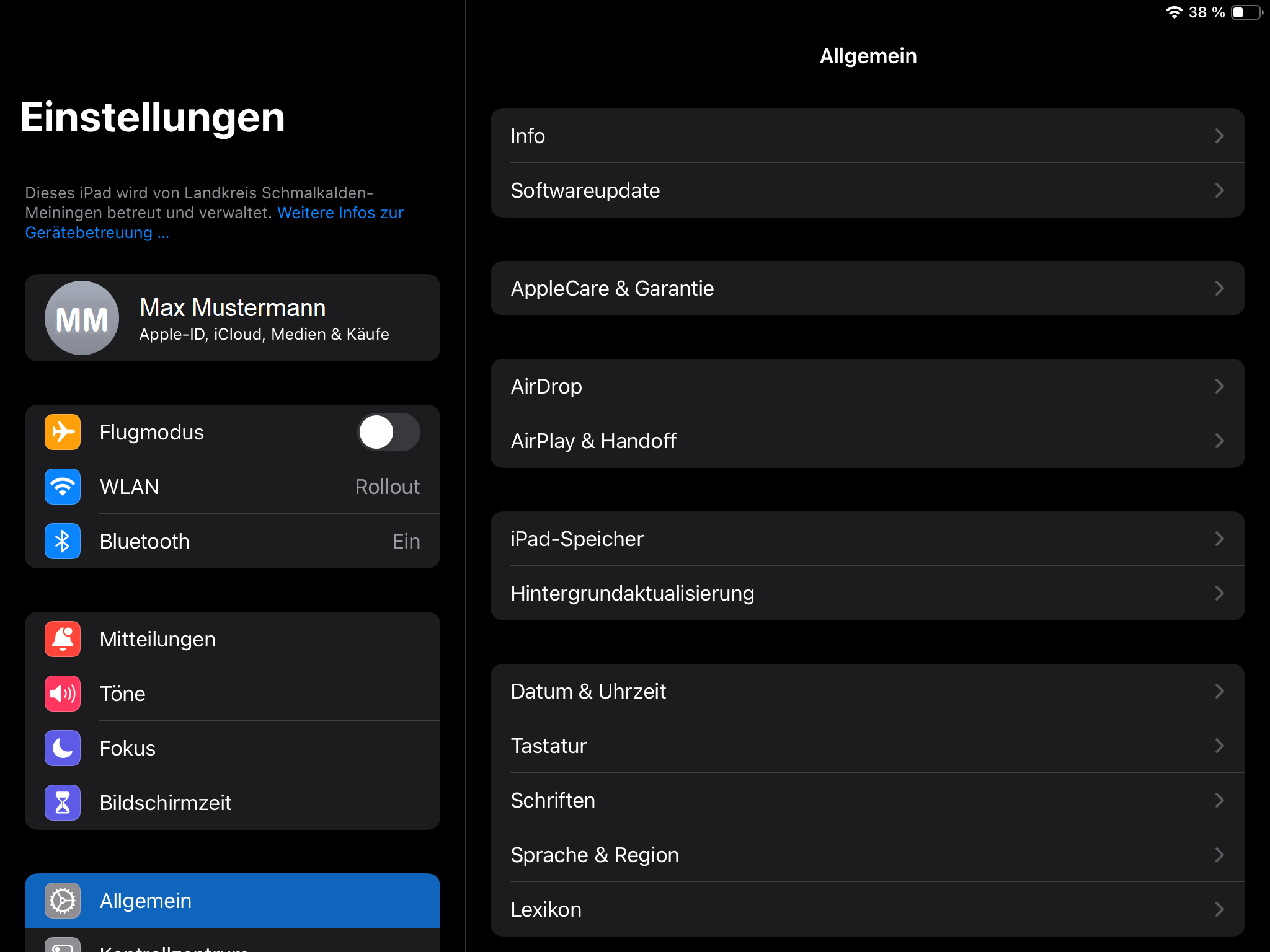
.Öffnen Sie die “Einstellungen”-App auf dem iPad.
,"spread":0},{"color":"rgba(0, 0, 0, 0.16)","x":0,"y":1,"blur":3,"spread":1}]}},"body":{"text":{"fontSize":14,"color":{"light":"#363636"},"fontWeight":"normal","textAlign":"left"}},"header":{"icon":{"name":"faInfoCircle","color":{"light":"#007bbd"},"size":18}},"headline":{"text":{"text":"Info","color":"var(--ds-text)","fontSize":18,"fontWeight":"bold","textAlign":"left"}}}

Im Folgenden wird Ihnen Schritt für Schritt erklärt, wie man Backups in der iCloud macht.

Image Removed

Aura - Divider
serializedStyles{"alignment":{"horizontal":"start"},"icon":{"name":"faPaperPlane","color":"#333","size":24},"text":{"color":"#333","fontSize":14,"textAlign":"left","fontWeight":"bold","text":"Aura Divider"},"border":{"top":false,"right":false,"bottom":true,"left":false,"color":{"light":"#b6c2cf"},"style":"solid","width":1},"size":{}}
typeregular

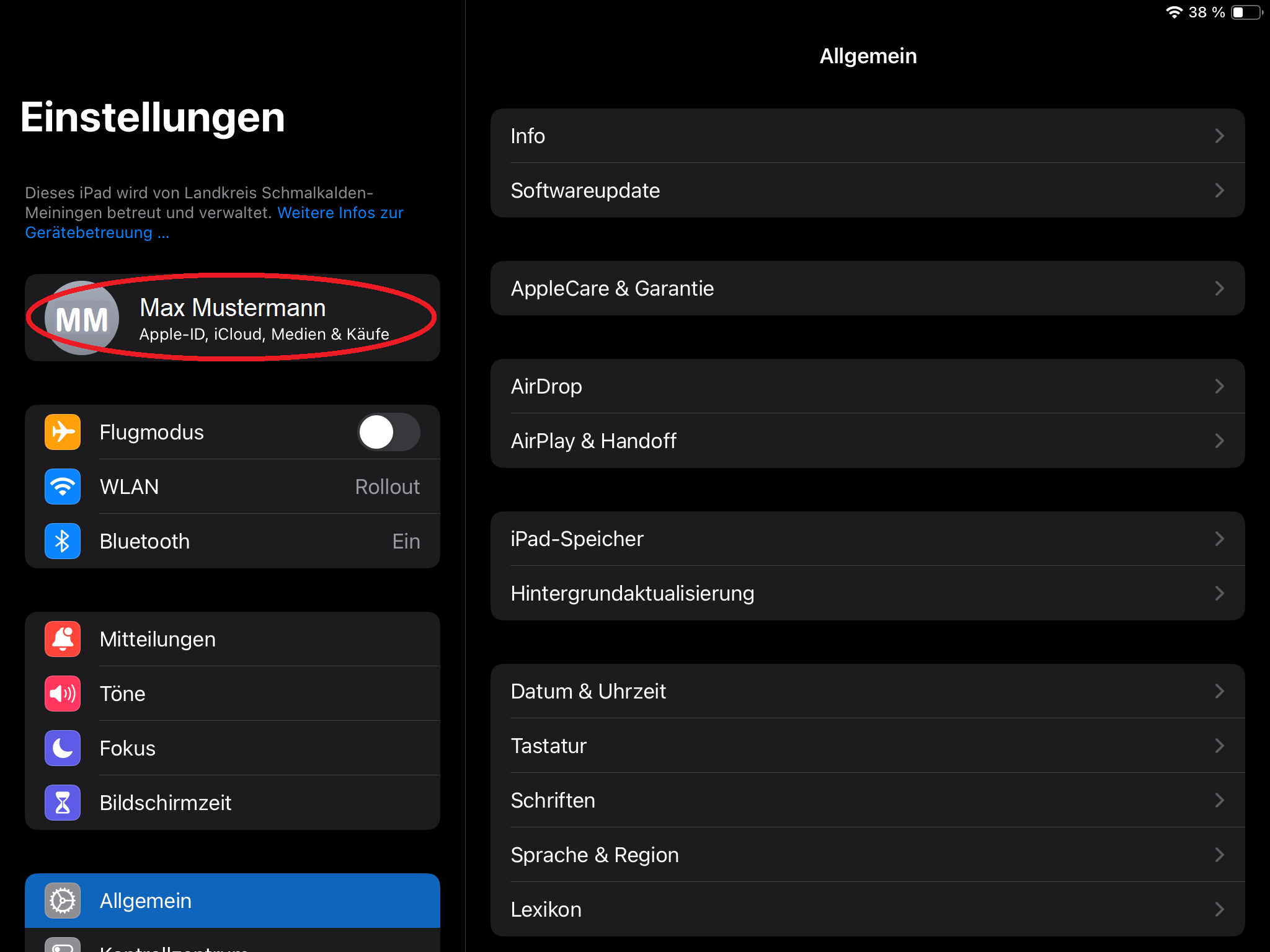
2. Tippen Sie auf Ihren Namen oben in der Liste.

Image Removed

Aura - Panel
tab0
styles{"body":{"text":{"fontSize":14,"color":{"light":"#363636"},"textAlign":"left","fontWeight":"normal"}},"header":{},"headline":{"
Aura - DividerserializedStyles{"
alignment":{"horizontal":"start"}},
"icon
"base":{"boxShadow":{"shadows":[{
"name":"faPaperPlane",
"color":"rgba(0, 0, 0, 0.08)","x":0,"y":1,"blur":1,"spread":0},{"color":"
#333","size":24},"text":{"color":"#333","fontSize":
rgba(0, 0, 0, 0.16)","x":0,"y":1,"blur":3,"spread":1}]},"borderRadius":{"radius":8},"backgroundColor":{"color":{"light":"#f2f2f2"}},"border":{"color":{"light":"#c1c1c1"},"style":"solid","width":2,"bottom":true,"top":false,"left":false,"right":false},"size":{}}}

  Schritt 1:

Expand
titleEin-/Ausklappen

Öffnen Sie die “Einstellungen”-App auf dem iPad.

Image Added

Aura - Panel
tab0
styles{"body":{"text":{"fontSize":14,"color":{"light":"#363636"},"
14,"
textAlign":"left","fontWeight":
"bold","text
"normal"}},"header":{},"headline":{"alignment":{"horizontal":"
Aura Divider
start"}},
"border":{"top":false,"right":false,"bottom":true,"left":false,"
"base":{"boxShadow":{"shadows":[{"color":"rgba(0, 0, 0, 0.08)","x":0,"y":1,"blur":1,"spread":0},{"color":"rgba(0, 0, 0, 0.16)","x":0,"y":1,"blur":3,"spread":1}]},"borderRadius":{"radius":8},"backgroundColor":{"color":{"light":"#f2f2f2"}},"border":{"color":{"light":"
#b6c2cf
#c1c1c1"},"style":"solid","width":
1
2,"bottom":true,"top":false,"left":false,"right":false},"size":{}}}
typeregular3.

  Schritt 2:

Expand
titleEin-/Ausklappen

Tippen Sie auf

“iCloud”

Ihren Namen oben in der Liste.

Image Removed

Image Added

aura-
divider
Panel
tab0
styles{"body":{"text":{"fontSize":14,"color":{"light":"#363636"},"textAlign":"left","fontWeight":"normal"}},"header":{},"headline":{"
serializedStyles{"
alignment":{"horizontal":"start"}},
"icon
"base":{"boxShadow":{"shadows":[{
"name":"faPaperPlane","color":"#333","size":24},"text":{"color":"#333","fontSize
"color":"rgba(0, 0, 0, 0.08)","x":0,"y":1,"blur":1,"spread":0},{"color":"rgba(0, 0, 0, 0.16)","x":0,"y":1,"blur":3,"spread":1}]},"borderRadius":{"radius":8},"backgroundColor":{"color":{"light":"#f2f2f2"}},"border":{"color":{"light":"#c1c1c1"},"style":"solid","width":2,"bottom":true,"top":false,"left":false,"right":false},"size":{}}}

  Schritt 3:

Expand
titleEin-/Ausklappen

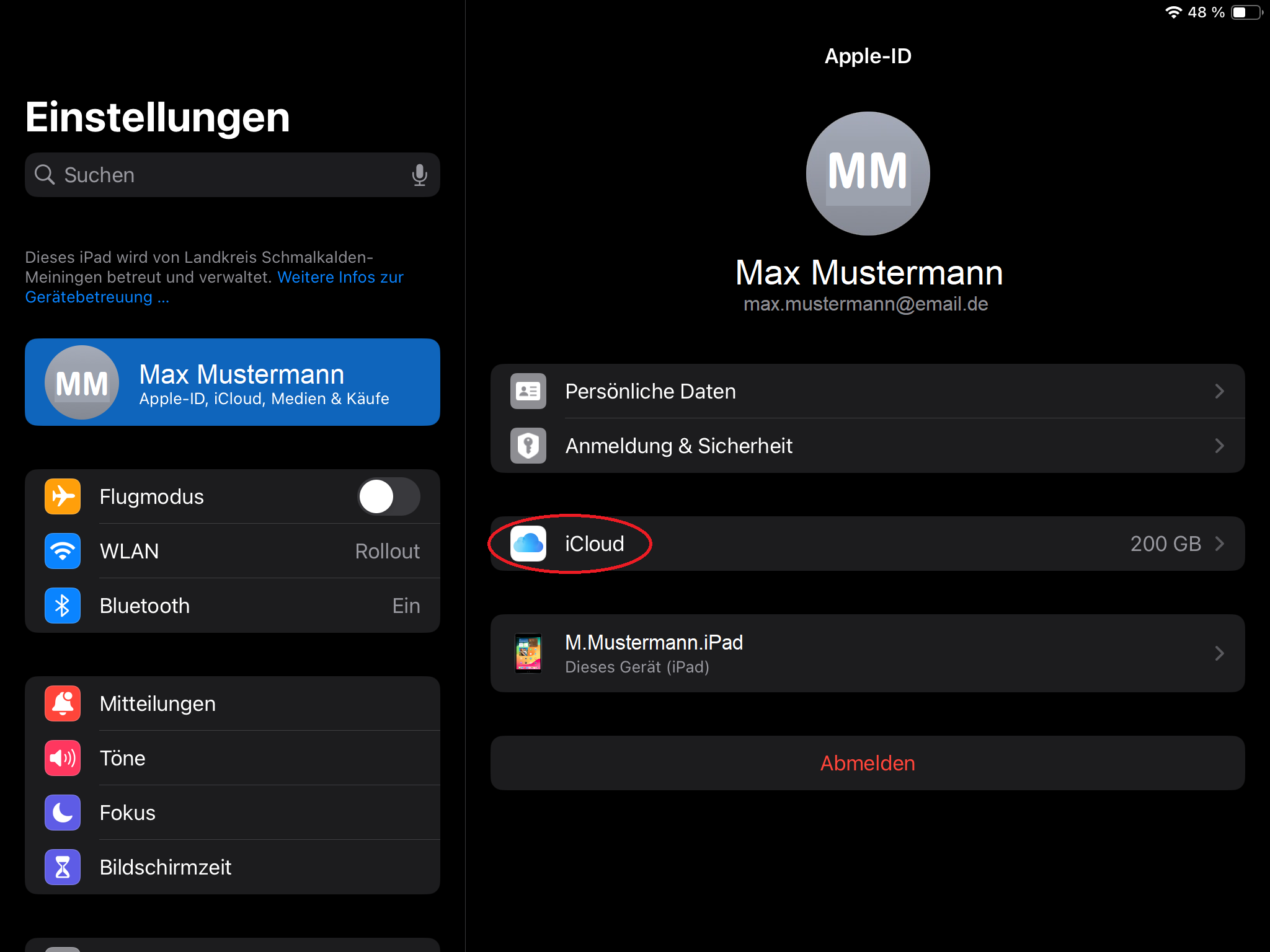
Tippen Sie auf “iCloud”.

Image Added

Aura - Panel
tab0
styles{"body":{"text":{"fontSize":14,"color":{"light":"#363636"}
":14
,"textAlign":"left","fontWeight":
"bold","text
"normal"}},"header":{},"headline":{"alignment":{"horizontal":"
Aura Divider"},"border":{"top":false,"right":false,"bottom":true,"left":false,"
start"}},"base":{"boxShadow":{"shadows":[{"color":"rgba(0, 0, 0, 0.08)","x":0,"y":1,"blur":1,"spread":0},{"color":"rgba(0, 0, 0, 0.16)","x":0,"y":1,"blur":3,"spread":1}]},"borderRadius":{"radius":8},"backgroundColor":{"color":{"light":"#f2f2f2"}},"border":{"color":{"light":"
#b6c2cf
#c1c1c1"},"style":"solid","width
":14.
":2,"bottom":true,"top":false,"left":false,"right":false},"size":{}}}
typeregular

  Schritt 4:

Expand
titleEin-/Ausklappen

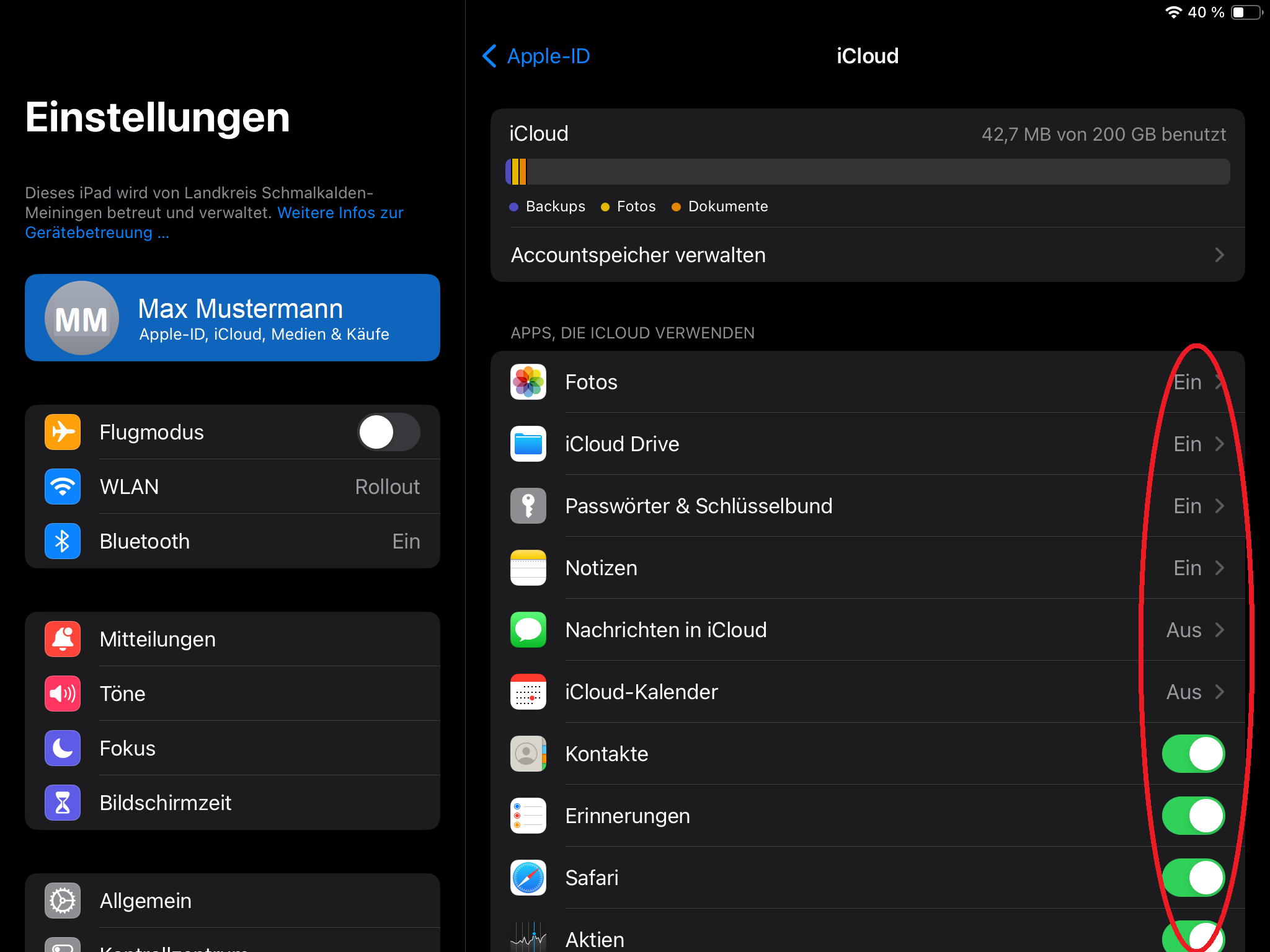
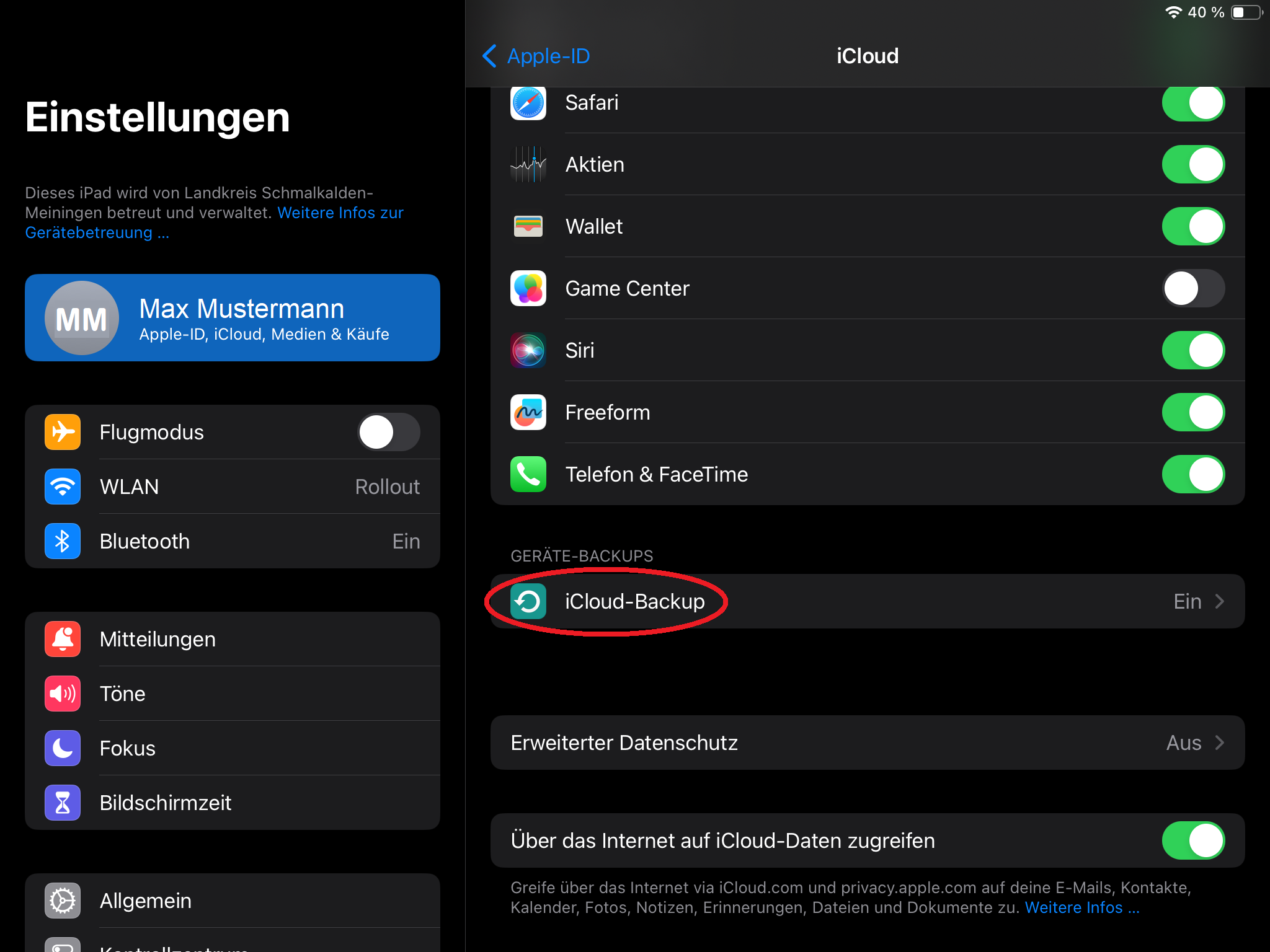
Stellen Sie sicher, dass iCloud Drive und die Apps, die Sie sichern möchten, aktiviert sind.

Image Modified

aura-
dividerserializedStyles
Panel
tab0
styles{"
alignment
body":{"
horizontal
text":{"
start
fontSize"
}
:14,"
icon
color":{"
name
light":"#363636"},"textAlign":"
faPaperPlane
left","
color
fontWeight":"
#333
normal"}},
"size":24},"text":{"color":"#333","fontSize":14,"textAlign":"left","fontWeight":"bold","text":"Aura Divider"},"border":{"top":false,"right":false,"bottom":true,"left":false,
"header":{},"headline":{"alignment":{"horizontal":"start"}},"base":{"boxShadow":{"shadows":[{"color":"rgba(0, 0, 0, 0.08)","x":0,"y":1,"blur":1,"spread":0},{"color":"rgba(0, 0, 0, 0.16)","x":0,"y":1,"blur":3,"spread":1}]},"borderRadius":{"radius":8},"backgroundColor":{"color":{"light":"#f2f2f2"}},"border":{"color":{"light":"
#b6c2cf
#c1c1c1"},"style":"solid","width":2,"bottom":true,"top":false,"
:1
left":false,"right":false},"size":{}}
typeregular5.
}

  Schritt 5:

Expand
titleEin-/Ausklappen

Tippen Sie auf “iCloud Backup”.

iCloud-Backups können ausschließlich bei Privaten Apple-IDs genutzt werden (bei verwalteten Apple-IDs kann das wiederherstellen aus einem Backup, zum Datenverlust führen)

Image Modified

Aura - Divider
serializedStyles{"alignment":{"horizontal":"start"},"icon":{"name":"faPaperPlane","color":"#333","size":24},"text":{"color":"#333","fontSize":14,"textAlign":"left","fontWeight":"bold","text":"Aura Divider"},"border":{"top":false,"right":false,"bottom":true,"left":false,"color":{"light":"#b6c2cf"},"style":"solid","width":1},"size":{}}
typeregular

Aura - Panel
Wichtig!
tab1
styles{"base":{"backgroundColor":{"color":"var(--aui-body-background)"},"border":{"color":"#e5556e","width":4,"top":false,"right":false,"bottom":false,"left":true,"style":"solid"},"borderRadius":{"radius":8},"boxShadow":{"shadows":[{"color":"rgba(0, 0, 0, 0.08)","x":0,"y":1,"blur":1,"spread":0},{"color":"rgba(0, 0, 0, 0.16)","x":0,"y":1,"blur":3,"spread":1}]}},"body":{"text":{"fontSize":14,"color":{"light":"#363636"},"fontWeight":"normal","textAlign":"left"}},"header":{"icon":{"name":"faExclamationCircle","color":"#e5556e","size":18}},"headline":{"text":{"text":"Wichtig","color":"var(--ds-text)","fontSize":18,"fontWeight":"bold","textAlign":"left"}}}

Überprüfen Sie ob alle Daten die Sie speichern möchten im "iCloud Drive" gespeichert

sind sollte

sind. Sollte dies nicht der fall sein folgt anschließend eine Anleitung, zum verschieben/Kopieren von Daten in die iCloud Drive.

Aura - Panel
tab0
styles{"body":{"text":{"fontSize":14,"color":{"light":"#363636"},"textAlign":"left","fontWeight":"normal"}},"header":{},"headline":{"alignment":{"horizontal":"start"}},"base":{"boxShadow":{"shadows":[{"color":"rgba(0, 0, 0, 0.08)","x":0,"y":1,"blur":1,"spread":0},{"color":"rgba(0, 0, 0, 0.16)","x":0,"y":1,"blur":3,"spread":1}]},"borderRadius":{"radius":8},"backgroundColor":{"color":{"light":"#f2f2f2"}},"border":{"color":{"light":"#c1c1c1"},"style":"solid","width":2,"bottom":true,"top":false,"left":false,"right":false},"size":{}}}

Manuelles Speichern in iCloud:

Expand
titleEin-/Ausklappen

Dokumente und Dateien in die iCloud speichern:

  • Öffne die Dateien-App → Wähle die zu sichernden Dateien/Dokumente aus → Klicke auf „Verschieben“ oder „Kopieren“ → Wähle iCloud Drive als Ziel aus.

Apps wie Pages, Numbers, Keynote manuell in iCloud speichern:

  • Öffne das Dokument → Tippe auf das Teilen-Symbol → Wähle „In Dateien sichern“ → Wähle iCloud Drive als Speicherort.

Fotos und Videos in iCloud speichern:

  • Öffne die Einstellungen → Gehe zu [Dein Name]  iCloud  Fotos → Aktiviere iCloud-Fotos.
  • Dadurch werden alle Fotos und Videos automatisch in iCloud hochgeladen, ohne ein vollständiges iCloud-Backup zu benötigen.


Tablets an Schulen Neu TSN