Tablets an Schulen Neu
Space shortcuts
Space Tools
Tablets an Schulen Neu TSN

Versions Compared

Key

  • This line was added.
  • This line was removed.
  • Formatting was changed.
Page properties
hiddentrue


InhaltEine Anleitung zum Schulabgang
Version1
Status

Status
colourGreen
titleaktiv


Aura - Button
elevationflat
outlinedregular
borderRadius8
color{"light":"#FFFFFF","dark":"#FFFFFF"}
sizemedium
background{"light":"#007bbd"}
iconfaArrowLeft
iconPositionleft
hrefTypepage
href163120151
labelZurück
alignmentleft

Aura - Background Content
backgroundImageHrefTypeattachment
padding40
backgroundImageHref163120976
containerMinHeight250
backgroundSizecontain
contentPositionflex-end
backgroundPositioncenter center


Aura - Title
color{"light":"#363636"}
textAligncenter
fontSize32
lineHeight48
cloudTextDemo Title
tagh1
fontWeightnormal
Anleitung zum Schulabgang


Aura - Panel
tab1
styles{"base":{"backgroundColor":{"color":"var(--aui-body-background)"},"border":{"color":{"light":"#007bbd"},"width":4,"top":false,"right":false,"bottom":false,"left":true,"style":"solid"},"borderRadius":{"radius":8},"boxShadow":{"shadows":[{"color":"rgba(0, 0, 0, 0.08)","x":0,"y":1,"blur":1,"spread":0},{"color":"rgba(0, 0, 0, 0.16)","x":0,"y":1,"blur":3,"spread":1}]}},"body":{"text":{"fontSize":14,"color":{"light":"#363636"},"fontWeight":"normal","textAlign":"left"}},"header":{"icon":{"name":"faInfoCircle","color":{"light":"#007bbd"},"size":1836}},"headline":{"text":{"text":"Info","color":"var(--ds-text)","fontSize":1836,"fontWeight":"bold","textAlign":"left"}}}

Im Folgenden finden Sie eine detaillierte Anleitung für das Beantragen eines Schulabgangs.

Link zu dieser Seite: https://kb.lra-sm.de/x/HIDyBw


Aura - Panel
tab1
styles{"body":{},"header":{},"headline":{},"base":{"boxShadow":{"shadows":[{"color":"rgba(0, 0, 0, 0.08)","x":0,"y":1,"blur":1,"spread":0},{"color":"rgba(0, 0, 0, 0.16)","x":0,"y":1,"blur":3,"spread":1}]},"borderRadius":{"radius":4},"backgroundColor":{"color":{"light":"#f2f2f2"}}}}

Wann muss ein Schulabgang beantragt werden?

Ein Schulabgang muss beantragt werden, wenn ein Schüler nicht mehr zur Schule geht oder eine Schule besucht, die nicht vom Kommunalen IT-Service (KITS) betreut wird. In diesem Artikel erhalten Sie eine Schritt für Schritt Anleitung Inklusive Bildern.

Aura - Divider
serializedStyles{"alignment":{"horizontal":"start"},"icon":{"name":"faPaperPlane","color":"#333","size":24},"text":{"color":"#333","fontSize":14,"textAlign":"left","fontWeight":"bold","text":"Aura Divider"},"border":{"top":false,"right":false,"bottom":true,"left":false,"color":{"light":"#b6c2cf"},"style":"solid","width":1},"size":{}}
typeregular

Aura - Title
color{"light":"#007bbd"}
textAlignleft
fontSize28
lineHeight0
cloudTextDemo Title
tagh1
fontWeightbold
Zum Service Desk


Aura - Panel
tab0
styles{"body":{"text":{"fontSize":14,"color":{"light":"#363636"},"textAlign":"left","fontWeight":"normal"}},"header":{},"headline":{"alignment":{"horizontal":"start"}},"base":{"boxShadow":{"shadows":[{"color":"rgba(0, 0, 0, 0.08)","x":0,"y":1,"blur":1,"spread":0},{"color":"rgba(0, 0, 0, 0.16)","x":0,"y":1,"blur":3,"spread":1}]},"borderRadius":{"radius":8},"backgroundColor":{"color":{"light":"#f2f2f2"}},"border":{"color":{"light":"#c1c1c1"},"style":"solid","width":2,"bottom":true,"top":false,"left":false,"right":false},"size":{}}}

Schritt 1: Zugang zum Ticketportal

Um Zugang zum Ticketportal für Schulen zu erhalten, klicken Sie auf die Schaltfläche "Service Desk"

Aura - Button
elevationflat
outlinedregular
borderRadius8
color{"light":"#FFFFFF","dark":"#FFFFFF"}
sizelarge
background{"light":"#007bbd"}
iconPositionleft
hrefTypelink
hrefhttps://tam.lra-sm.de/plugins/servlet/desk
labelService Desk
alignmentleft

Aura - Divider
serializedStyles{"alignment":{"horizontal":"start"},"icon":{"name":"faPaperPlane","color":"#333","size":24},"text":{"color":"#333","fontSize":14,"textAlign":"left","fontWeight":"bold","text":"Aura Divider"},"border":{"top":false,"right":false,"bottom":true,"left":false,"color":{"light":"#b6c2cf"},"style":"solid","width":1},"size":{}}
typeregular

Erstellen eines KITS Kontos

aura-pretty-paneltitle
color
tab0
styles{"bodylight":{"#007bbd"}
textAlignleft
fontSize28
lineHeight0
cloudTextDemo Title
tagh1
fontWeightbold
Erstellen eines KITS Kontos


Aura - Panel
tab0
styles{"body":{"text":{"fontSize":text":{"fontSize":14,"color":{"light":"#363636"},"textAlign":"left","fontWeight":"normal"}},"header":{},"headline":{"alignment":{"horizontal":"start"}},"base":{"boxShadow":{"shadows":[{"color":"rgba(0, 0, 0, 0.08)","x":0,"y":1,"blur":1,"spread":0},{"color":"rgba(0, 0, 0, 0.16)","x":0,"y":1,"blur":3,"spread":1}]},"borderRadius":{"radius":8},"backgroundColor":{"color":{"light":"#f2f2f2"}},"border":{"color":{"light":"#c1c1c1"},"style":"solid","width":2,"bottom":true,"top":false,"left":false,"right":false},"size":{}}}

  Schritt 2: KITS Konto erstellen

Expand
titleEin-/Ausklappen

Wenn Sie schon ein Konto besitzen, überspringen Sie bis "Schritt 9".

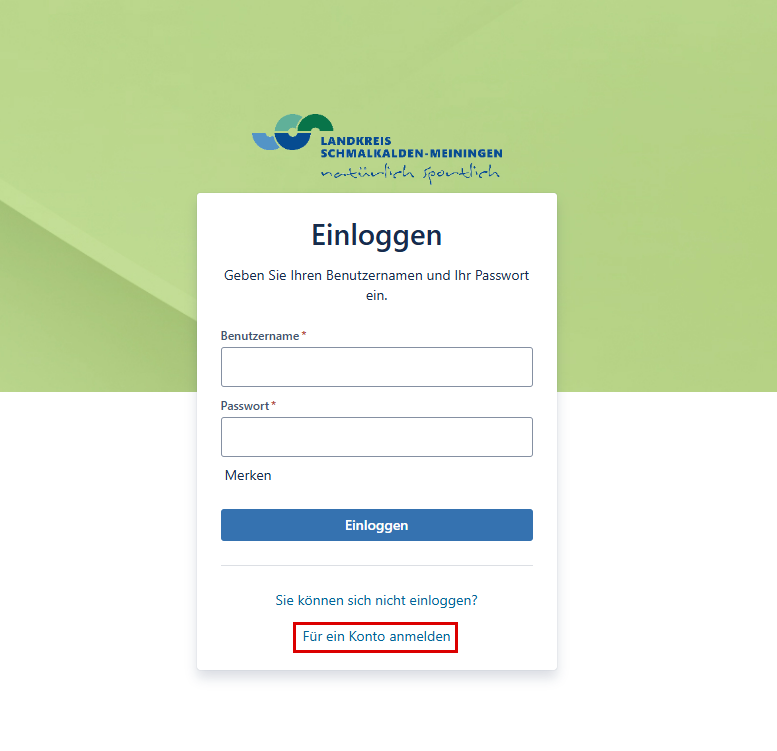
Falls Sie noch kein Konto haben, müssen Sie sich zunächst registrieren. Klicken Sie hierzu auf "Für ein Konto anmelden".

Image Modified

Aura - Panel
tab0
styles{"body":{"text":{"fontSize":14,"color":{"light":"#363636"},"textAlign":"left","fontWeight":"normal"}},"header":{},"headline":{"alignment":{"horizontal":"start"}},"base":{"boxShadow":{"shadows":[{"color":"rgba(0, 0, 0, 0.08)","x":0,"y":1,"blur":1,"spread":0},{"color":"rgba(0, 0, 0, 0.16)","x":0,"y":1,"blur":3,"spread":1}]},"borderRadius":{"radius":8},"backgroundColor":{"color":{"light":"#f2f2f2"}},"border":{"color":{"light":"#c1c1c1"},"style":"solid","width":2,"bottom":true,"top":false,"left":false,"right":false},"size":{}}}

  Schritt 3: KITS Konto registrieren

Expand
titleEin-/Ausklappen

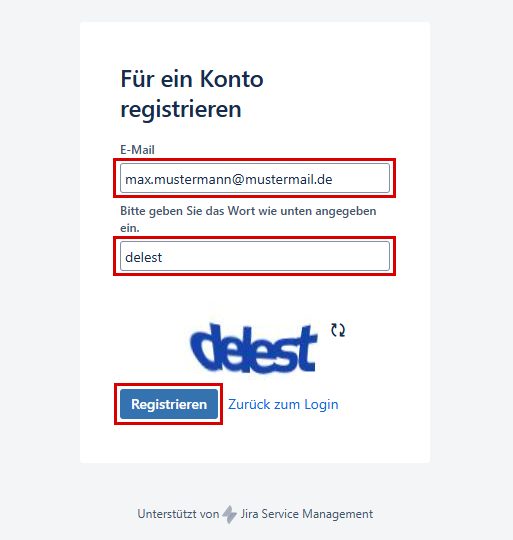
Geben Sie Ihre E-Mail-Adresse und Captcha-Wort ein. Klicken Sie auf "Registrieren".

Image Modified

Aura - Panel
tab0
styles{"body":{"text":{"fontSize":14,"color":{"light":"#363636"},"textAlign":"left","fontWeight":"normal"}},"header":{},"headline":{"alignment":{"horizontal":"start"}},"base":{"boxShadow":{"shadows":[{"color":"rgba(0, 0, 0, 0.08)","x":0,"y":1,"blur":1,"spread":0},{"color":"rgba(0, 0, 0, 0.16)","x":0,"y":1,"blur":3,"spread":1}]},"borderRadius":{"radius":8},"backgroundColor":{"color":{"light":"#f2f2f2"}},"border":{"color":{"light":"#c1c1c1"},"style":"solid","width":2,"bottom":true,"top":false,"left":false,"right":false},"size":{}}}

  Schritt 4: Kontoregistrierung überprüfen

Expand
titleEin-/Ausklappen

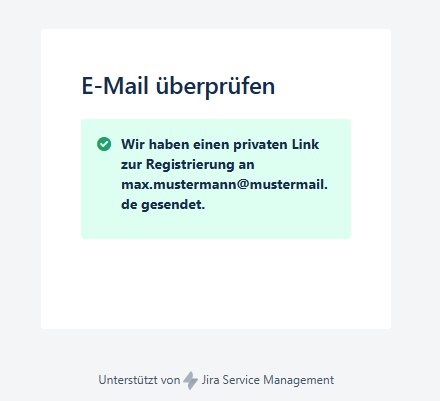
Nach erfolgreicher Registrierung erhalten sie von "ticket@lra-sm.de" eine Bestätigungs-Mail, dass ihr Konto angelegt wurde.

Image Modified

Aura - Panel
tab0
styles{"body":{"text":{"fontSize":14,"color":{"light":"#363636"},"textAlign":"left","fontWeight":"normal"}},"header":{},"headline":{"alignment":{"horizontal":"start"}},"base":{"boxShadow":{"shadows":[{"color":"rgba(0, 0, 0, 0.08)","x":0,"y":1,"blur":1,"spread":0},{"color":"rgba(0, 0, 0, 0.16)","x":0,"y":1,"blur":3,"spread":1}]},"borderRadius":{"radius":8},"backgroundColor":{"color":{"light":"#f2f2f2"}},"border":{"color":{"light":"#c1c1c1"},"style":"solid","width":2,"bottom":true,"top":false,"left":false,"right":false},"size":{}}}

  Schritt 5: Kontoregistrierung bestätigen

Expand
titleEin-/Ausklappen

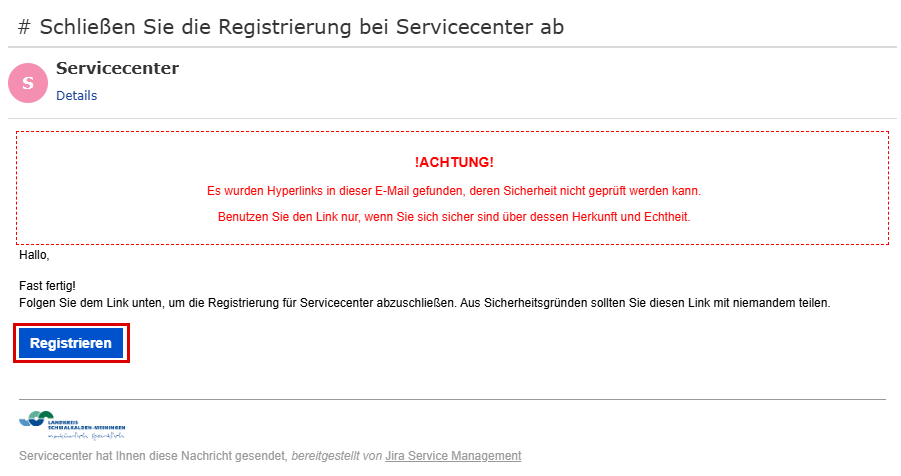
Überprüfen Sie Ihre E-Mails.
Bestätigen Sie Ihre Registrierung, in dem Sie auf "Registrieren" klicken.

Image Modified

Aura - Panel
tab0
styles{"body":{"text":{"fontSize":14,"color":{"light":"#363636"},"textAlign":"left","fontWeight":"normal"}},"header":{},"headline":{"alignment":{"horizontal":"start"}},"base":{"boxShadow":{"shadows":[{"color":"rgba(0, 0, 0, 0.08)","x":0,"y":1,"blur":1,"spread":0},{"color":"rgba(0, 0, 0, 0.16)","x":0,"y":1,"blur":3,"spread":1}]},"borderRadius":{"radius":8},"backgroundColor":{"color":{"light":"#f2f2f2"}},"border":{"color":{"light":"#c1c1c1"},"style":"solid","width":2,"bottom":true,"top":false,"left":false,"right":false},"size":{}}}

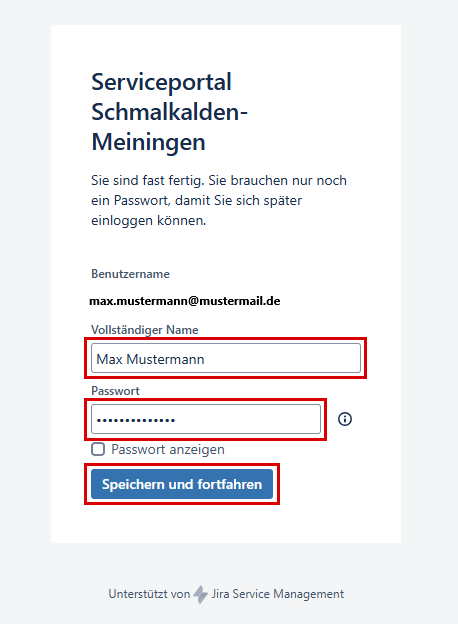
  Schritt 6: Name und Passwort festlegen

Expand
titleEin-/Ausklappen

Nach dem Sie zum Ticketportal weitergeleitet wurden, vervollständigen Sie bitte Ihren "Vollständigen Name" , vergeben ein sicheres Passwort und akzeptieren die Kundenvereinbarung, sowie die Datenschutzerklärung.

Image Modified

Aura - Panel
tab0
styles{"body":{"text":{"fontSize":14,"color":{"light":"#363636"},"textAlign":"left","fontWeight":"normal"}},"header":{},"headline":{"alignment":{"horizontal":"start"}},"base":{"boxShadow":{"shadows":[{"color":"rgba(0, 0, 0, 0.08)","x":0,"y":1,"blur":1,"spread":0},{"color":"rgba(0, 0, 0, 0.16)","x":0,"y":1,"blur":3,"spread":1}]},"borderRadius":{"radius":8},"backgroundColor":{"color":{"light":"#f2f2f2"}},"border":{"color":{"light":"#c1c1c1"},"style":"solid","width":2,"bottom":true,"top":false,"left":false,"right":false},"size":{}}}

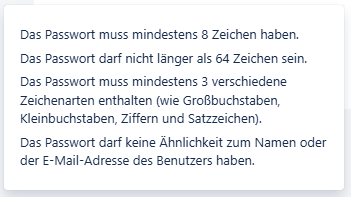
  Schritt 7: Passwortrichtlinien beachten

Expand
titleEin-/Ausklappen

Beachten Sie beim anlegen des Passwortes die Passwortrichtlinie!

Image Modified

Aura - Panel
tab0
styles{"body":{"text":{"fontSize":14,"color":{"light":"#363636"},"textAlign":"left","fontWeight":"normal"}},"header":{},"headline":{"alignment":{"horizontal":"start"}},"base":{"boxShadow":{"shadows":[{"color":"rgba(0, 0, 0, 0.08)","x":0,"y":1,"blur":1,"spread":0},{"color":"rgba(0, 0, 0, 0.16)","x":0,"y":1,"blur":3,"spread":1}]},"borderRadius":{"radius":8},"backgroundColor":{"color":{"light":"#f2f2f2"}},"border":{"color":{"light":"#c1c1c1"},"style":"solid","width":2,"bottom":true,"top":false,"left":false,"right":false},"size":{}}}

  Schritt 8: Im Ticketportal anmelden

Expand
titleEin-/Ausklappen

Jetzt können Sie erneut auf folgenden Link "ServiceDesk" zugreifen und sich gegebenenfalls anmelden. 

Aura - Divider
serializedStyles{"alignment":{"horizontal":"start"},"icon":{"name":"faPaperPlane","color":"#333","size":24},"text":{"color":"#333","fontSize":14,"textAlign":"left","fontWeight":"bold","text":"Aura Divider"},"border":{"top":false,"right":false,"bottom":true,"left":false,"color":{"light":"#b6c2cf"},"style":"solid","width":1},"size":{}}
typeregular

aura-panelpretty-title
color
tab0
styles{"bodylight":"#007bbd"}
textAlignleft
fontSize28
lineHeight0
cloudTextDemo Title
tagh1
fontWeightbold
Erstellen eines Schulabgangs-Tickets


Aura - Panel
tab0
styles{"body":{"{"text":{"fontSize":14,"color":{"light":"#363636"},"textAlign":"left","fontWeight":"normal"}},"header":{},"headline":{"alignment":{"horizontal":"start"}},"base":{"boxShadow":{"shadows":[{"color":"rgba(0, 0, 0, 0.08)","x":0,"y":1,"blur":1,"spread":0},{"color":"rgba(0, 0, 0, 0.16)","x":0,"y":1,"blur":3,"spread":1}]},"borderRadius":{"radius":8},"backgroundColor":{"color":{"light":"#f2f2f2"}},"border":{"color":{"light":"#c1c1c1"},"style":"solid","width":2,"bottom":true,"top":false,"left":false,"right":false},"size":{}}}

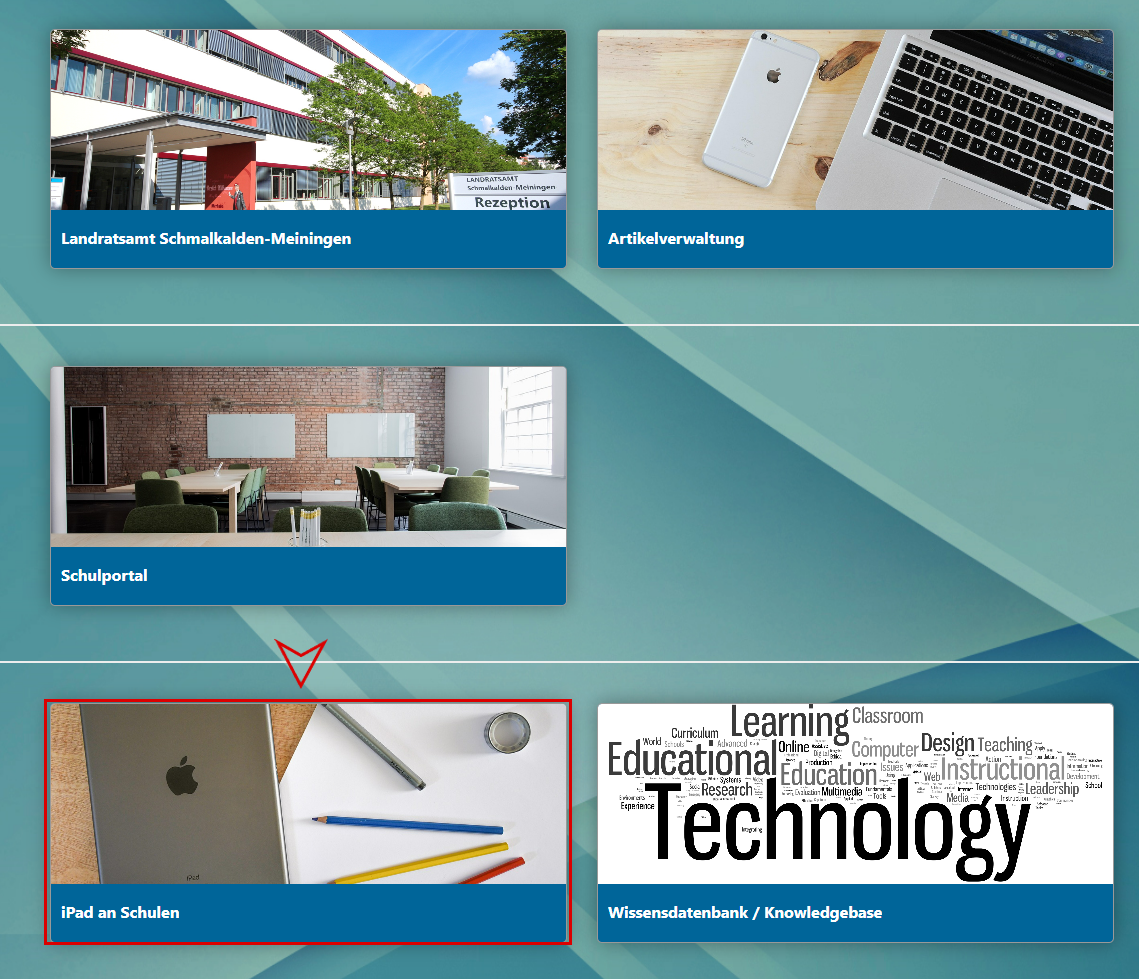
  Schritt 9: Thema iPads an Schulen wählen

Expand
titleEin-/Ausklappen

Wählen Sie in der Website-Navigation den Punkt "iPads an Schulen" aus .

Image Modified

Aura - Panel
tab0
styles{"body":{"text":{"fontSize":14,"color":{"light":"#363636"},"textAlign":"left","fontWeight":"normal"}},"header":{},"headline":{"alignment":{"horizontal":"start"}},"base":{"boxShadow":{"shadows":[{"color":"rgba(0, 0, 0, 0.08)","x":0,"y":1,"blur":1,"spread":0},{"color":"rgba(0, 0, 0, 0.16)","x":0,"y":1,"blur":3,"spread":1}]},"borderRadius":{"radius":8},"backgroundColor":{"color":{"light":"#f2f2f2"}},"border":{"color":{"light":"#c1c1c1"},"style":"solid","width":2,"bottom":true,"top":false,"left":false,"right":false},"size":{}}}

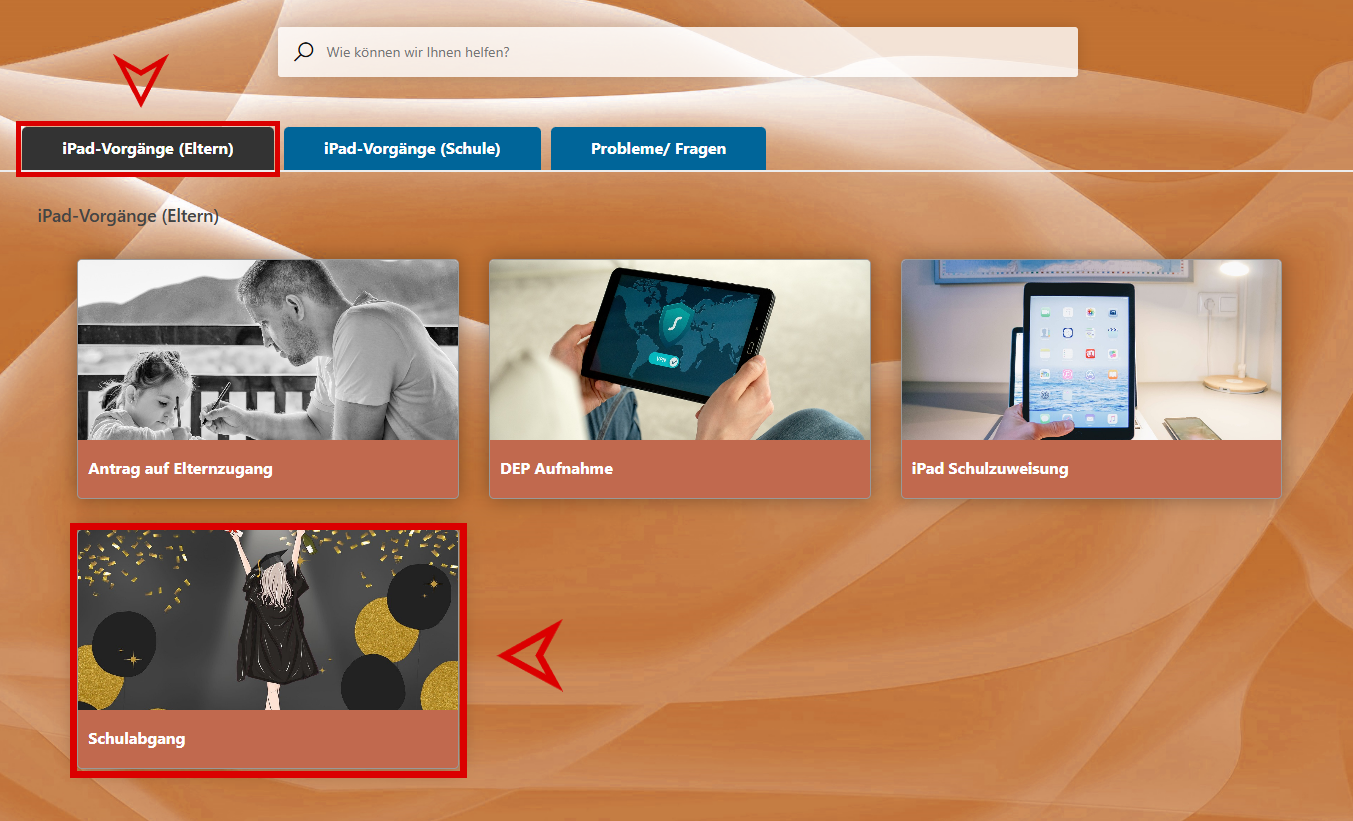
  Schritt 10: Schulabgangsformular aufrufen

Expand
titleEin-/Ausklappen

Klicken Sie innerhalb der Rubrik "iPad-Vorgänge (Eltern)" auf "Schulabgang"

Image Modified

Aura - Panel
tab0
styles{"body":{"text":{"fontSize":14,"color":{"light":"#363636"},"textAlign":"left","fontWeight":"normal"}},"header":{},"headline":{"alignment":{"horizontal":"start"}},"base":{"boxShadow":{"shadows":[{"color":"rgba(0, 0, 0, 0.08)","x":0,"y":1,"blur":1,"spread":0},{"color":"rgba(0, 0, 0, 0.16)","x":0,"y":1,"blur":3,"spread":1}]},"borderRadius":{"radius":8},"backgroundColor":{"color":{"light":"#f2f2f2"}},"border":{"color":{"light":"#c1c1c1"},"style":"solid","width":2,"bottom":true,"top":false,"left":false,"right":false},"size":{}}}

  Schritt 11: Formular ausfüllen

Expand
titleEin-/Ausklappen

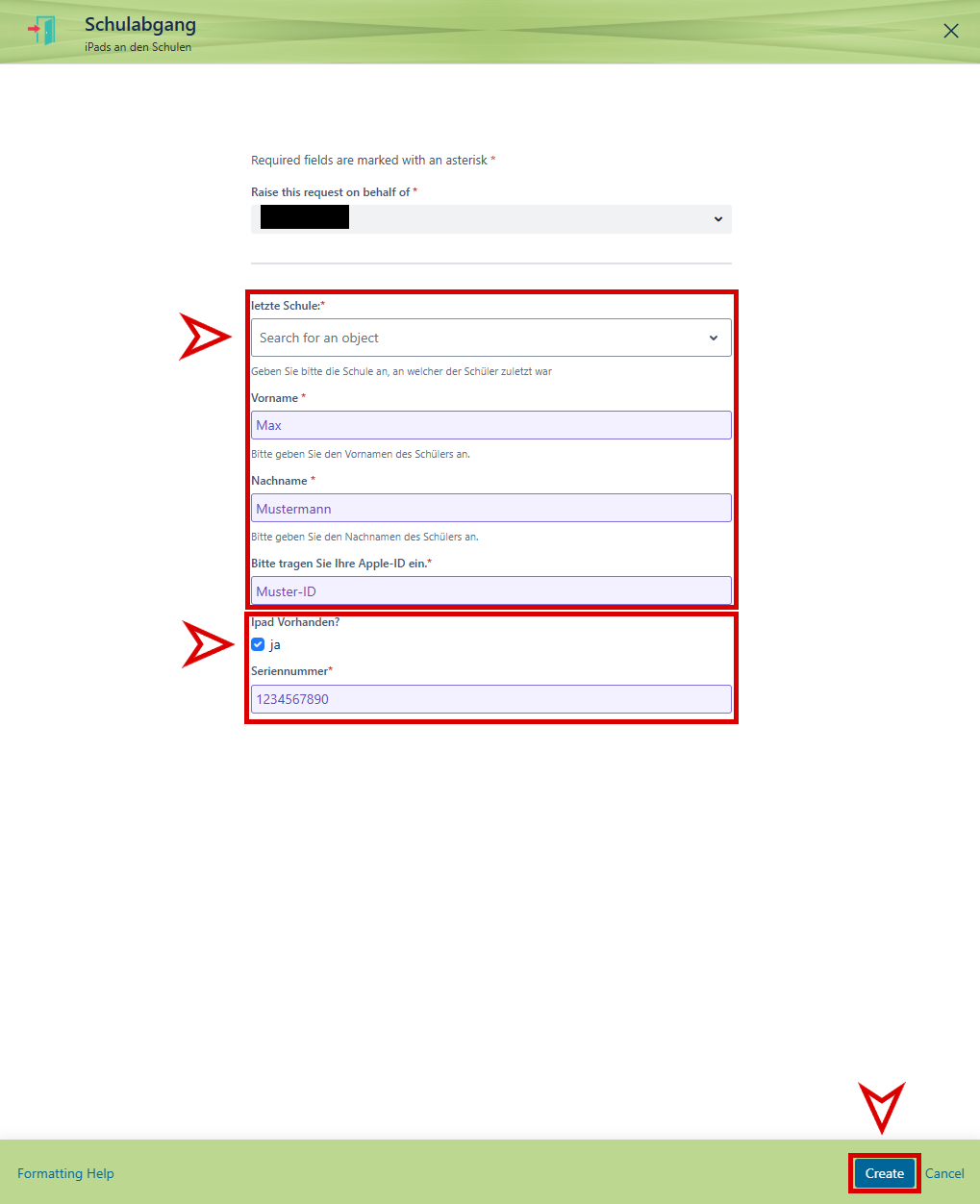
Nun öffnet sich das Formular für

die DEP Aufnahme

den Schulabgangsprozess.
Geben Sie Ihre Daten nach dem Beispiel im Bild in das Formular ein und wählen Sie Ihre Schule aus.
Wichtig: Wenn ein iPad aus der Verwaltung entfernt werden soll, kreuzen Sie das Kästchen bei "iPad vorhanden?" an und geben Sie die Seriennummer an.
Wenn Sie das Formular vollständig ausgefüllt haben, drücken Sie anschließend auf "Erstellen", um es abzuschicken.

Image Modified

aura-

panel

divider

tabstyles

serializedStyles

0

{"

body

alignment":{"

text

horizontal":

{

"

fontSize

start"

:14

},"icon":{"name":"faPaperPlane","color":"#333","size":24},"text":{"

light

color":"

#363636"}

#333","fontSize":14,"textAlign":"left","fontWeight":"

normal

bold"

}}

,"

header

text":

{

"Aura Divider"},"

headline

border":{"

alignment

top":

{

false,"

horizontal

right":false,"

start

bottom"

}}

:true,"

base

left":

{

false,"

boxShadow

color":{"

shadows

light":

[{"color

"#b6c2cf"},"style":"

rgba(0, 0, 0, 0.08)

solid","

x

width":

0,"y":

1},"

blur

size":{}}
typeregular

Aura - Title
color{"light":"#007bbd"}
textAlignleft
fontSize28
lineHeight0
cloudTextDemo Title
tagh1
fontWeightbold
Wie geht es weiter?


1,"spread":0},{"color":"rgba(0, 0, 0, 0.16)","x":0,"y":1,"blur":3,"spread":1}]},"borderRadius":{"radius":8},"backgroundColor":{"color":{"light":"#f2f2f2"}},"border":{"color":{"light":"#c1c1c1"},"style":"solid","width":2,"bottom":true,"top":false,"left":false,"right":false},"size":{}}}

  Schritt 12:

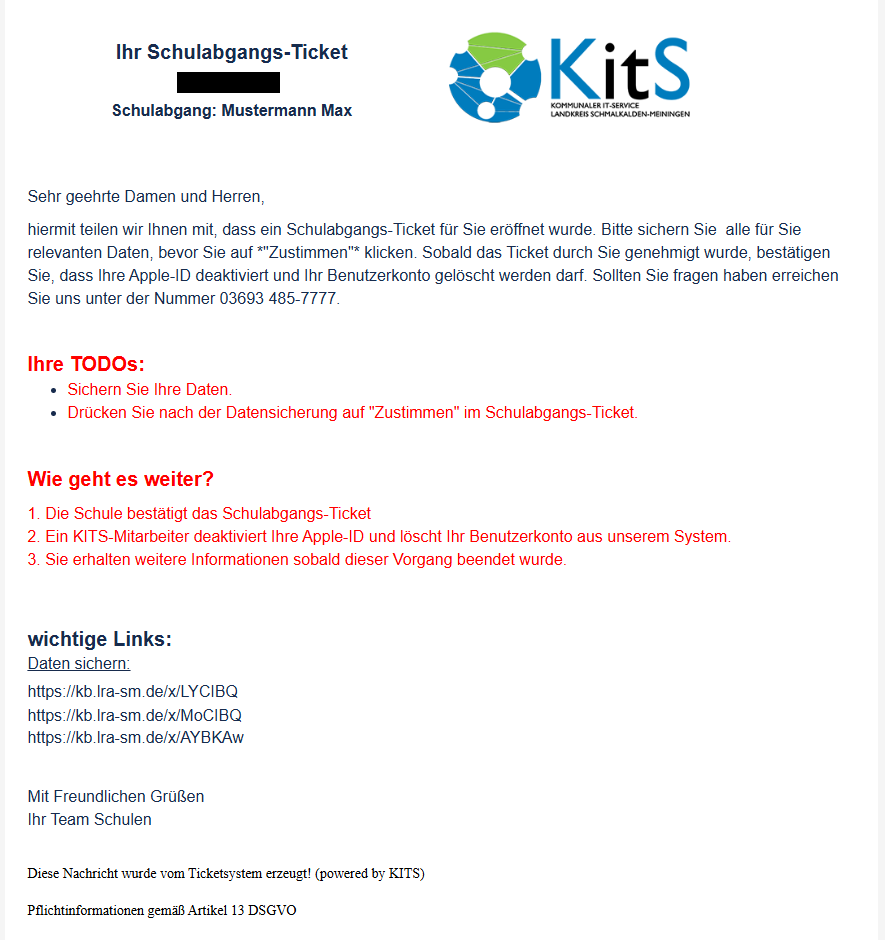
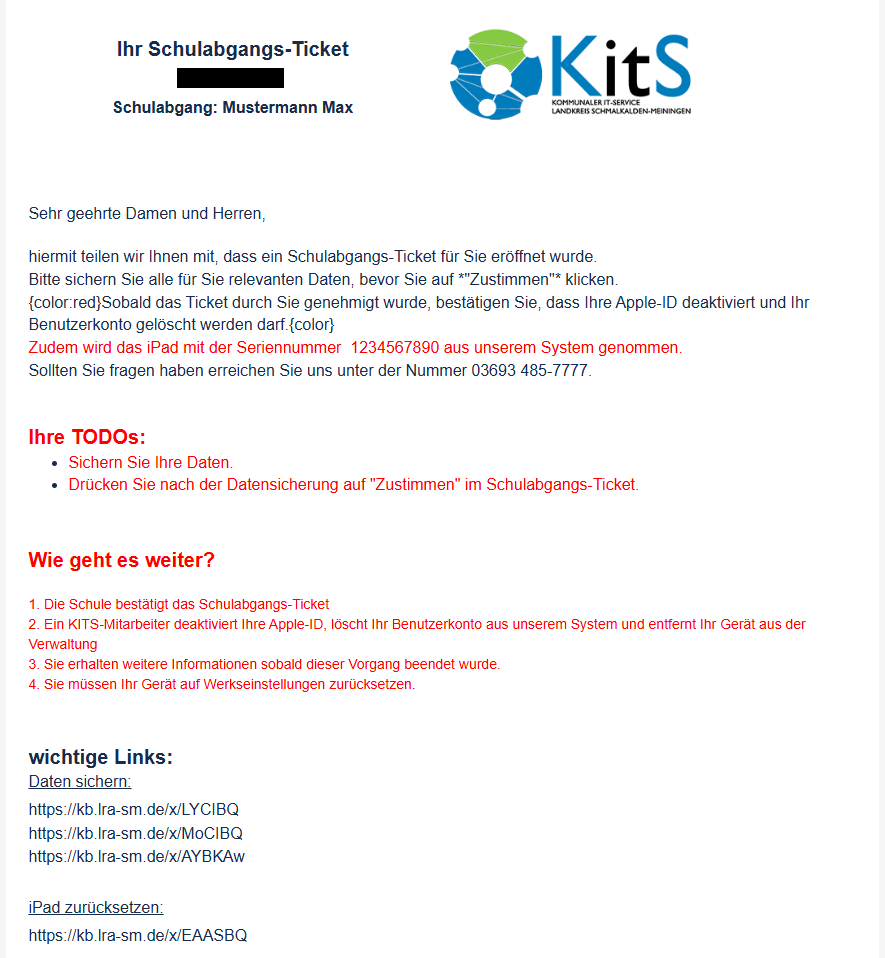
Sie erhalten von uns nach Erstellung des Vorgangs eine E-Mail mit weiterführenden Informationen.

Die E-Mail sollte wie folgt aussehen:

(iPad soll nicht aus der Verwaltung raus genommen werden):

Image Removed

(iPad soll aus der Verwaltung raus genommen werden):

Image Removed

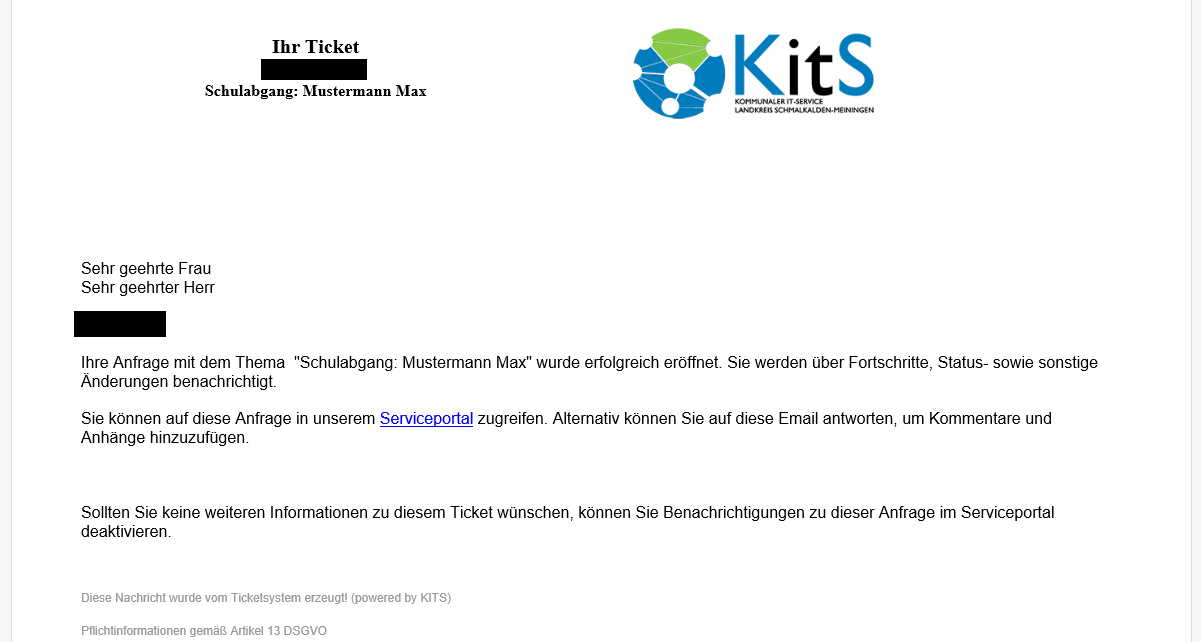
Sie bekommen ebenfalls noch eine zusätzliche Bestätigungs-E-Mail:
Image Removed
Aura - Panel
tab0
styles{"body":{"text":{"fontSize":14,"color":{"light":"#363636"},"textAlign":"left","fontWeight":"normal"}},"header":{},"headline":{"alignment":{"horizontal":"start"}},"base":{"boxShadow":{"shadows":[{"color":"rgba(0, 0, 0, 0.08)","x":0,"y":1,"blur":1,"spread":0},{"color":"rgba(0, 0, 0, 0.16)","x":0,"y":1,"blur":3,"spread":1}]},"borderRadius":{"radius":8},"backgroundColor":{"color":{"light":"#f2f2f2"}},"border":{"
Expand
titleEin-/Ausklappen
Aura - Panel
tab0
styles{"body":{"text":{"fontSize":14,"color":{"light":"#363636#c1c1c1"},"textAlignstyle":"leftsolid","fontWeightwidth":2,"normalbottom"}}:true,"headertop":{}false,"headlineleft":{false,"alignmentright":{false},"horizontalsize":"start"}},"base":{"boxShadow":{"shadows":[{"color":"rgba(0, 0, 0, 0.08)","x":0,"y":1,"blur":1,"spread":0},{"color":"rgba(0, 0, 0, 0.16)","x":0,"y":1,"blur":3,"spread":1}]},"borderRadius":{"radius":8},"backgroundColor":{"color":{"light":"#f2f2f2"}},"border":{"color":{"light":"#c1c1c1"},"style":"solid","width":2,"bottom":true,"top":false,"left":false,"right":false},"size":{}}}

  Schritt 13:

Expand
titleEin-/Ausklappen

Sobald das Schulabgangs-Ticket durch die Schule verifiziert wurde und ein KITS-Mitarbeiter das Ticket bearbeitet, erhalten Sie eine Informations-E-Mail.
Dies kann in Spitzenzeiten bis zu 2 Wochen in Anspruch nehmen.

Diese sollte wie folgt aussehen:

Image Removed

Aura - Panel
tab0
styles{"body":{"text":{"fontSize":14,"color":{"light":"#363636"},"textAlign":"left","fontWeight":"normal"}},"header":{},"headline":{"alignment":{"horizontal":"start"}},"base":{"boxShadow":{"shadows":[{"color":"rgba(0, 0, 0, 0.08)","x":0,"y":1,"blur":1,"spread":0},{"color":"rgba(0, 0, 0, 0.16)","x":0,"y":1,"blur":3,"spread":1}]},"borderRadius":{"radius":8},"backgroundColor":{"color":{"light":"#f2f2f2"}},"border":{"color":{"light":"#c1c1c1"},"style":"solid","width":2,"bottom":true,"top":false,"left":false,"right":false},"size":{}}}

  Schritt 14:

Expand
titleEin-/Ausklappen

Sobald das Schulabgangs-Ticket abgeschlossen wurde, erhalten Sie eine letzte Informations-E-Mail.

Diese sollte wie folgt aussehen:

Image Removed

Wichtig: Falls Ihr iPad aus der Verwaltung raus genommen wurde, müssen Sie noch Ihr iPad auf Werkseinstellungen zurücksetzen.

Nun ist der Vorgang erfolgreich abgeschlossen!

Aura - DividerserializedStyles
{}}}

  Schritt 12: Anweisungen zum Schulabgang

Expand
titleEin-/Ausklappen

Sie erhalten von uns nach Erstellung des Vorgangs eine E-Mail mit weiterführenden Informationen.
Folgen Sie den Anweisungen auf der E-Mail.

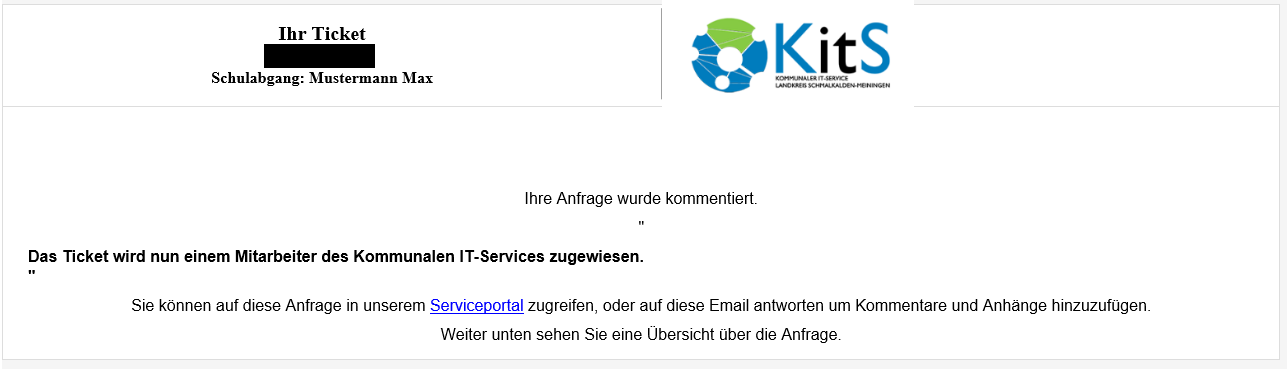
Die E-Mail sollte wie folgt aussehen:

(iPad soll nicht aus der Verwaltung raus genommen werden):

Image Added

(iPad soll aus der Verwaltung raus genommen werden):

Image Added

Sie bekommen ebenfalls noch eine zusätzliche Bestätigungs-E-Mail:

Image Added

Aura - Panel
tab0
styles{"body":{"text":{"fontSize":14,"color":{"light":"#363636"},"textAlign":"left","fontWeight":"normal"}},"header":{},"headline":{"alignment":{"horizontal":"start"}},"base":{"boxShadow":{"shadows":[{"color":"rgba(0, 0, 0, 0.08)","x":0,"y":1,"blur":1,"spread":0},{"color":"rgba(0, 0, 0, 0.16)","x":0,"y":1,"blur":3,"spread":1}]},"borderRadius":{"radius":8},"backgroundColor":{"color":{"light":"#f2f2f2"}},"border":{"color":{"light":"#c1c1c1"},"style":"solid","width":2,"bottom":true,"top":false,"left":false,"right":false},"size":{}}}

  Schritt 13: Verifizierung durch Ihre Schule

Expand
titleEin-/Ausklappen

Sobald das Schulabgangs-Ticket durch die Schule verifiziert wurde und ein KITS-Mitarbeiter das Ticket bearbeitet, erhalten Sie eine Informations-E-Mail.
Dies kann in Spitzenzeiten bis zu 2 Wochen in Anspruch nehmen.

Diese sollte wie folgt aussehen:

Image Added

Aura - Panel
tab0
styles{"body":{"text":{"fontSize":14,"color":{"light":"#363636"},"textAlign":"left","fontWeight":"normal"}},"header":{},"headline":{"alignment":{"horizontal":"start"}},"
icon
base":{"boxShadow":{
"name":"faPaperPlane",
"shadows":[{"color":"rgba(0, 0, 0, 0.08)","x":0,"y":1,"blur":1,"spread":0},{"color":"
#333
rgba(0, 0, 0, 0.16)","
size
x":
24}
0,"
text
y":
{
1,"
color
blur":
"#333"
3,"
fontSize
spread":
14
1}]},"
textAlign
borderRadius":{"
left
radius":8},"
fontWeight
backgroundColor":{"
bold
color"
,
:{"
text
light":"
Aura Divider
#f2f2f2"}},"border":{"
top
color":
false,
{"
right
light":
false,
"
bottom
#c1c1c1"
:true
},"
left
style":
false,
"
color
solid"
:{
,"
light
width":2,"
#b6c2cf
bottom"
}
:true,"
style
top":false,"
solid
left":false,"
width
right":
1
false},"size":{}}
typeregular
Aura - Panel
tab1
styles{"base":{"backgroundColor":{"color":"var(--aui-body-background)"},"border":{"color":"#e5556e","width":4,"top":false,"right":false,"bottom":false,"left":true,"style":"solid"},"borderRadius":{"radius":8},"boxShadow":{"shadows":[{"color":"rgba(0, 0, 0, 0.08)","x":0,"y":1,"blur":1,"spread":0},{"color":"rgba(0, 0, 0, 0.16)","x":0,"y":1,"blur":3,"spread":1}]}},"body":{"text":{"fontSize":14,"color":{"light":"#363636"},"fontWeight":"normal","textAlign":"left"}},"header":{"icon":{"name":"faExclamationCircle","color":"#e5556e","size":26}},"headline":{"text":{"text":"Wichtig","color":"var(--ds-text)","fontSize":26,"fontWeight":"bold","textAlign":"left"}}}

E-Mails werden an jene Adresse geschickt, welche unter Schritt 3 (Kontoregistrierung) eingetragen wurde. 

Aura - DividerserializedStyles{"alignment":{"horizontal":"start"},"icon":{"name":"faPaperPlane","color":"#333","size":24},"text":{"color":"#333","fontSize":14,"textAlign":"left","fontWeight":"bold","text":"Aura Divider"},"border":{"top":false,"right":false,"bottom":true,"left":false,"color":{"light":"#b6c2cf"},"style":"solid","width":1},"size":{}}typeregular
}

  Schritt 14: Schulabgangsbestätigung

Expand
titleEin-/Ausklappen

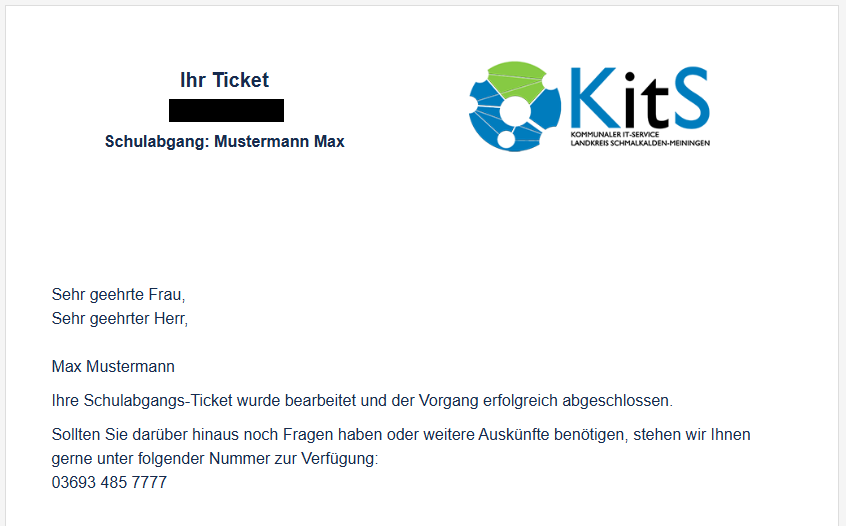
Sobald das Schulabgangs-Ticket abgeschlossen wurde, erhalten Sie eine letzte Informations-E-Mail.

Diese sollte wie folgt aussehen:

Image Added

Wichtig: Falls Ihr iPad aus der Verwaltung raus genommen wurde, müssen Sie noch Ihr iPad auf Werkseinstellungen zurücksetzen.

Nun ist der Vorgang erfolgreich abgeschlossen!

Aura - Divider
serializedStyles{"alignment":{"horizontal":"start"},"icon":{"name":"faPaperPlane","color":"#333","size":24},"text":{"color":"#333","fontSize":14,"textAlign":"left","fontWeight":"bold","text":"Aura Divider"},"border":{"top":false,"right":false,"bottom":true,"left":false,"color":{"light":"#b6c2cf"},"style":"solid","width":1},"size":{}}
typeregular


Aura - Panel
tab1
styles{"base":{"backgroundColor":{"color":"var(--aui-body-background)"},"border":{"color":"#e5556e","width":4,"top":false,"right":false,"bottom":false,"left":true,"style":"solid"},"borderRadius":{"radius":8},"boxShadow":{"shadows":[{"color":"rgba(0, 0, 0, 0.08)","x":0,"y":1,"blur":1,"spread":0},{"color":"rgba(0, 0, 0, 0.16)","x":0,"y":1,"blur":3,"spread":1}]}},"body":{"text":{"fontSize":14,"color":{"light":"#363636"},"fontWeight":"normal","textAlign":"left"}},"header":{"icon":{"name":"faExclamationCircle","color":"#e5556e","size":36}},"headline":{"text":{"text":"Wichtig","color":"var(--ds-text)","fontSize":36,"fontWeight":"bold","textAlign":"left"}}}

E-Mails werden an jene Adresse geschickt, welche unter Schritt 3 (Kontoregistrierung) eingetragen wurde. 

Aura - Panel
tab1
styles{"base":{"backgroundColor":{"color":"var(--aui-body-background)"},"border":{"color":{"light":"#007bbd"},"width":4,"top":false,"right":false,"bottom":false,"left":true,"style":"solid"},"borderRadius":{"radius":8},"boxShadow":{"shadows":[{"color":"rgba(0, 0, 0, 0.08)","x":0,"y":1,"blur":1,"spread":0},{"color":"rgba(0, 0, 0, 0.16)","x":0,"y":1,"blur":3,"spread":1}]}},"body":{"text":{"fontSize":14,"color":{"light":"#363636"},"fontWeight":"normal","textAlign":"left"}},"header":{"icon":{"name":"faInfoCircle","color":{"light":"#007bbd"},"size":1836}},"headline":{"text":{"text":"Info","color":"var(--ds-text)","fontSize":1836,"fontWeight":"bold","textAlign":"left"}}}

Sollten Sie fragen oder Probleme haben, stehen wir Ihnen auch Telefonisch zu Verfügung, Sie erreichen uns unter der 03693 485-7777. 


Tablets an Schulen Neu TSN