Tablets an Schulen Neu
Space shortcuts
Space Tools
Tablets an Schulen Neu TSN

Versions Compared

Key

  • This line was added.
  • This line was removed.
  • Formatting was changed.
Page properties
hiddentrue


InhaltEine Anleitung zum einrichten eines Profilbildes in Ihrer Apple-ID
Version1
Status

Status
colourGreen
titleaktiv


Aura - Button
elevationflat
outlinedregular
borderRadius8
color{"light":"#FFFFFF","dark":"#FFFFFF"}
sizemedium
background{"light":"#007bbd"}
iconfaArrowLeft
iconPositionleft
hrefTypepage
href163120321
labelZurück
alignmentleft

aura-background-image
backgroundImageHrefTypeattachment
padding40
backgroundImageHref163120744
containerMinHeight250
backgroundSizecontain
contentPositionflex-end
backgroundPositioncenter center


Aura - Title
color{"light":"#363636"}
textAligncenter
fontSize32
lineHeight48
cloudTextDemo Title
tagh1
fontWeightnormal
Einrichten eines Profilbildes bei Ihrer Apple-ID


aura-panel
tab1
styles{"base":{"backgroundColor":{"color":"var(--aui-body-background)"},"border":{"color":{"light":"#007bbd"},"width":4,"top":false,"right":false,"bottom":false,"left":true,"style":"solid"},"borderRadius":{"radius":8},"boxShadow":{"shadows":[{"color":"rgba(0, 0, 0, 0.08)","x":0,"y":1,"blur":1,"spread":0},{"color":"rgba(0, 0, 0, 0.16)","x":0,"y":1,"blur":3,"spread":1}]}},"body":{"text":{"fontSize":14,"color":{"light":"#363636"},"fontWeight":"normal","textAlign":"left"}},"header":{"icon":{"name":"faInfoCircle","color":{"light":"#007bbd"},"size":18}},"headline":{"text":{"text":"Info","color":"var(--ds-text)","fontSize":18,"fontWeight":"bold","textAlign":"left"}}}

Im Folgenden finden Sie eine Anleitung zum Einrichten eines Profilbildes in ihrer Apple-ID

Aura - Divider
serializedStyles{"alignment":{"horizontal":"start"},"icon":{"name":"faPaperPlane","color":"#333","size":24},"text":{"color":"#333","fontSize":14,"textAlign":"left","fontWeight":"bold","text":"Aura Divider"},"border":{"top":false,"right":false,"bottom":true,"left":false,"color":{"light":"#b6c2cf"},"style":"solid","width":1},"size":{}}
typeregular

Aura - Title
color{"light":"#363636"}
textAligncenter
fontSize32
lineHeight48
cloudTextDemo Title
tagh1
fontWeightnormal
Schritt für Schritt Anleitung


Aura - Panel
tab1
styles{"body":{"text":{"fontSize":14,"color":{"light":"#363636"},"textAlign":"left","fontWeight":"normal"}},"header":{},"headline":{},"base":{"boxShadow":{"shadows":[{"color":"rgba(0, 0, 0, 0.08)","x":0,"y":1,"blur":1,"spread":0},{"color":"rgba(0, 0, 0, 0.16)","x":0,"y":1,"blur":3,"spread":1}]},"borderRadius":{"radius":8},"backgroundColor":{"color":{"light":"#f2f2f2"}},"border":{"color":{"light":"#c1c1c1"},"style":"solid","width":2,"bottom":true,"top":false,"left":false,"right":false},"size":{}}}

Schritt 1:

Expand
titleEin-/Ausklappen


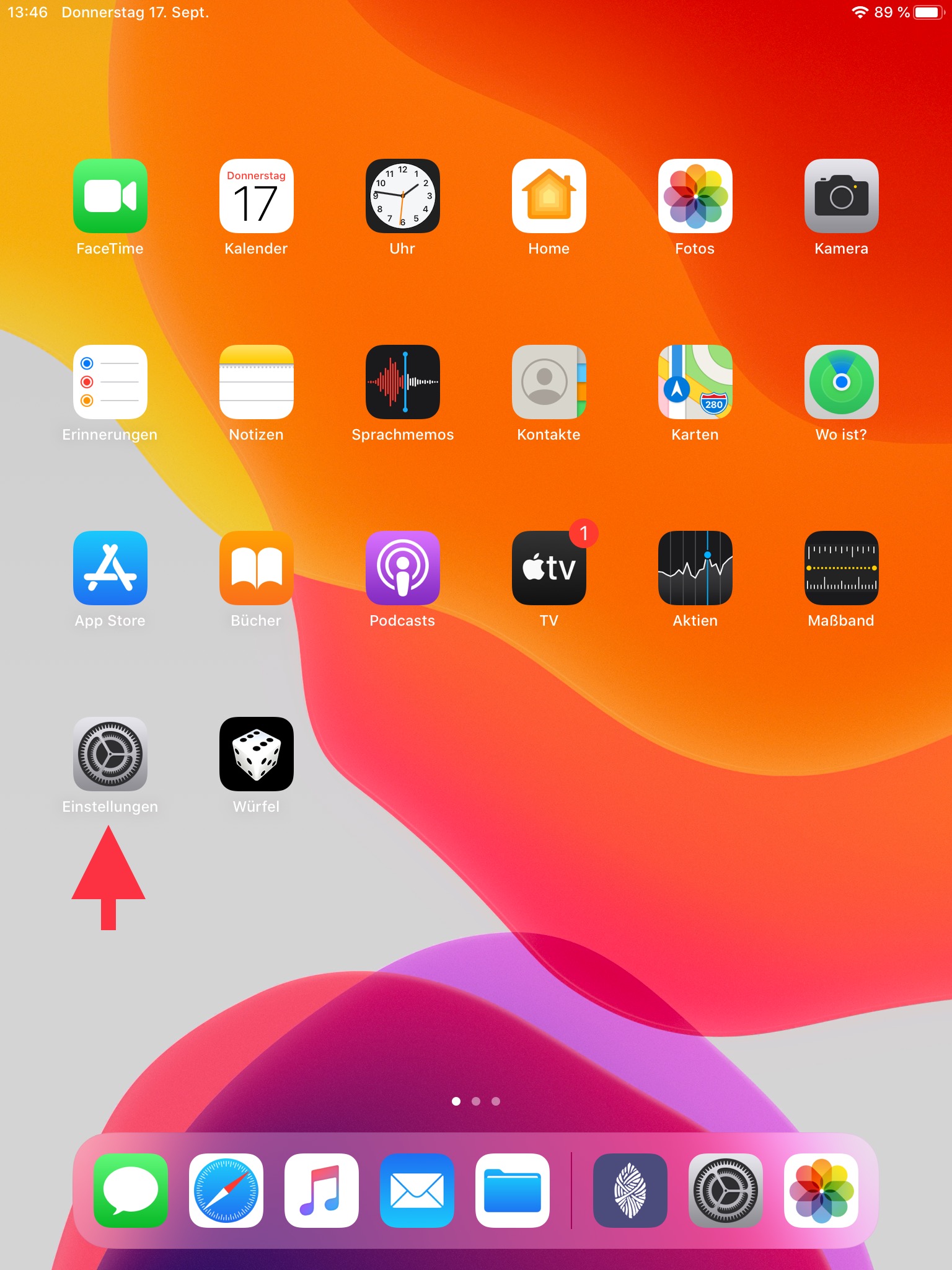
Öffnen Sie „Einstellungen“ auf Ihrem iPad. 

Aura - Panel
tab1
styles{"body":{"text":{"fontSize":14,"color":{"light":"#363636"},"textAlign":"left","fontWeight":"normal"}},"header":{},"headline":{},"base":{"boxShadow":{"shadows":[{"color":"rgba(0, 0, 0, 0.08)","x":0,"y":1,"blur":1,"spread":0},{"color":"rgba(0, 0, 0, 0.16)","x":0,"y":1,"blur":3,"spread":1}]},"borderRadius":{"radius":8},"backgroundColor":{"color":{"light":"#f2f2f2"}},"border":{"color":{"light":"#c1c1c1"},"style":"solid","width":2,"bottom":true,"top":false,"left":false,"right":false},"size":{}}}

Schritt 2:

Expand
titleEin-/Ausklappen


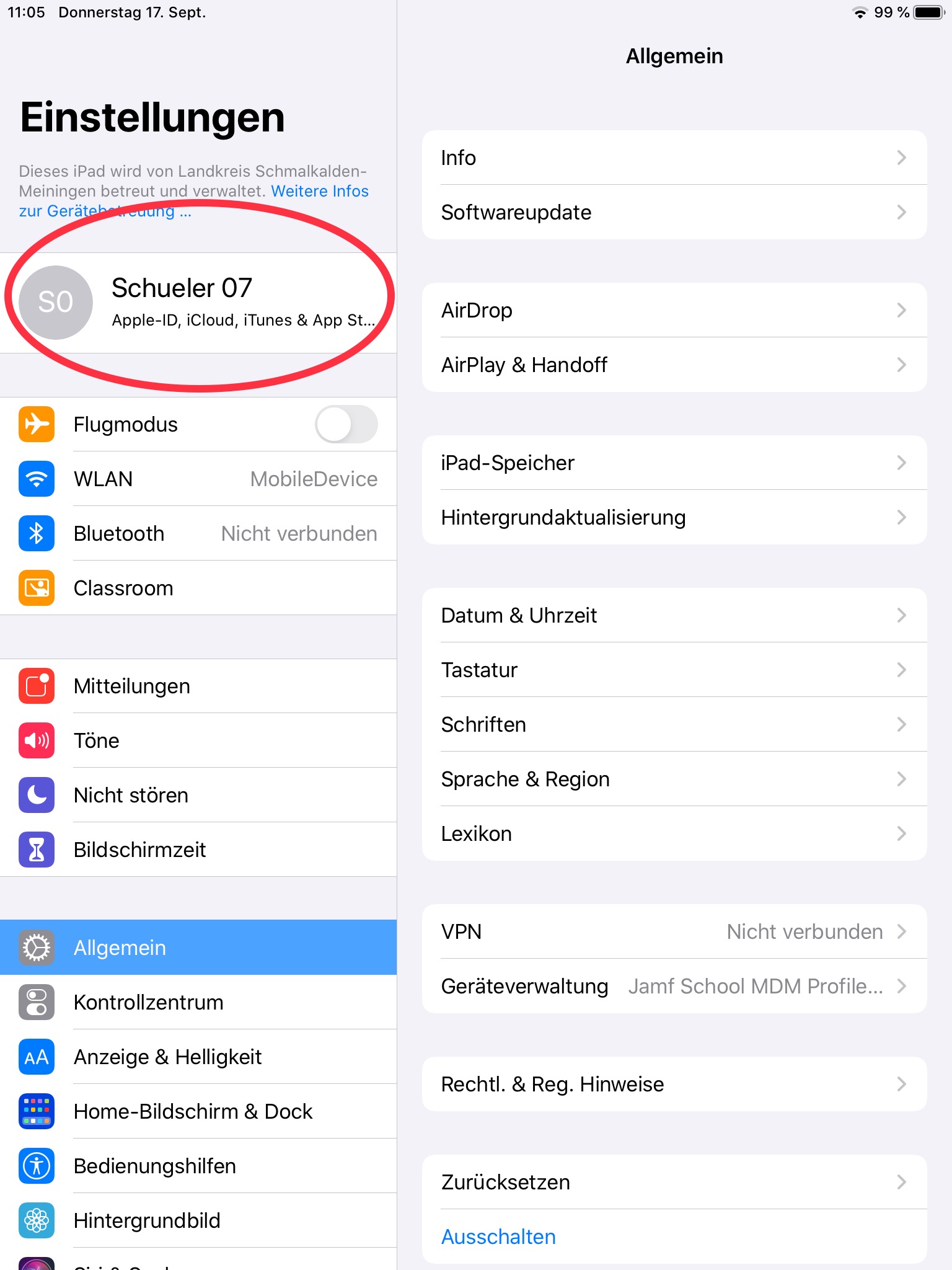
Klicken Sie oben links auf den angezeigten Namen.

Aura - Panel
tab1
styles{"body":{"text":{"fontSize":14,"color":{"light":"#363636"},"textAlign":"left","fontWeight":"normal"}},"header":{},"headline":{},"base":{"boxShadow":{"shadows":[{"color":"rgba(0, 0, 0, 0.08)","x":0,"y":1,"blur":1,"spread":0},{"color":"rgba(0, 0, 0, 0.16)","x":0,"y":1,"blur":3,"spread":1}]},"borderRadius":{"radius":8},"backgroundColor":{"color":{"light":"#f2f2f2"}},"size":{},"border":{"color":{"light":"#c1c1c1"},"style":"solid","width":2,"bottom":true,"top":false,"left":false,"right":false}}}

Schritt 3:

Expand
titleEin-/Ausklappen


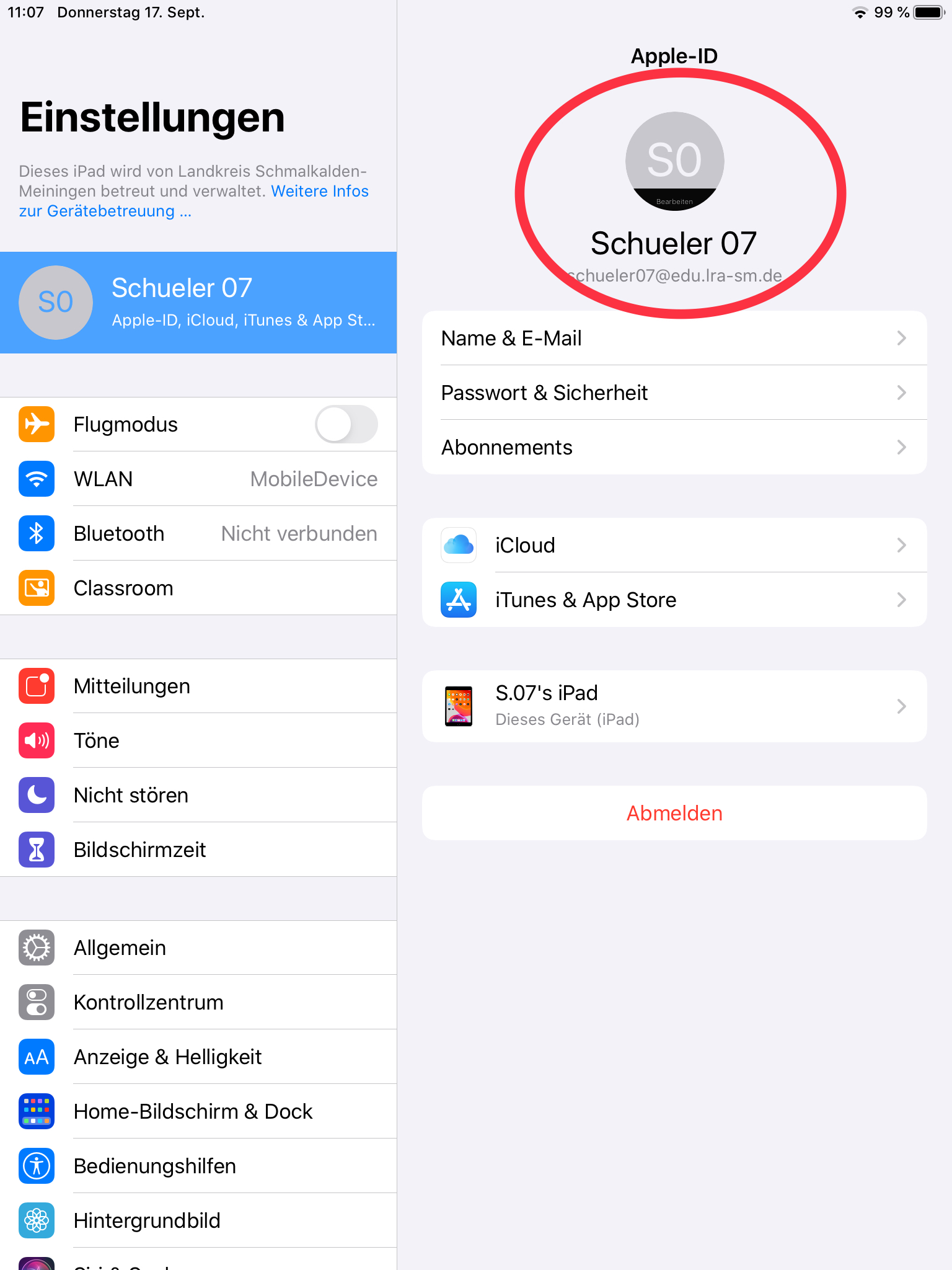
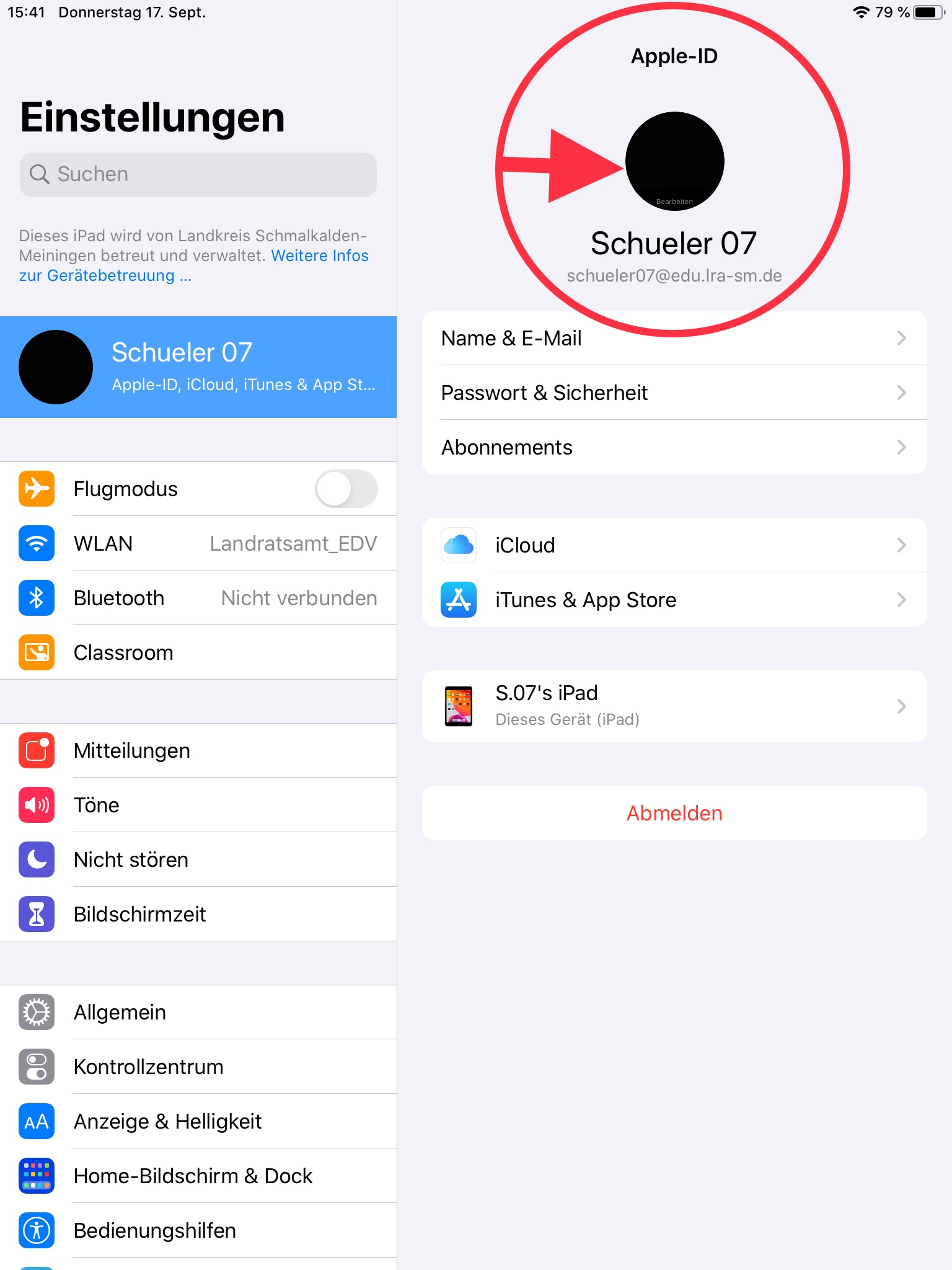
Wählen Sie danach oben rechts das graue, runde Feld aus.

Aura - Panel
tab1
styles{"body":{"text":{"fontSize":14,"color":{"light":"#363636"},"textAlign":"left","fontWeight":"normal"}},"header":{},"headline":{},"base":{"boxShadow":{"shadows":[{"color":"rgba(0, 0, 0, 0.08)","x":0,"y":1,"blur":1,"spread":0},{"color":"rgba(0, 0, 0, 0.16)","x":0,"y":1,"blur":3,"spread":1}]},"borderRadius":{"radius":8},"backgroundColor":{"color":{"light":"#f2f2f2"}},"size":{},"border":{"color":{"light":"#c1c1c1"},"style":"solid","width":2,"bottom":true,"top":false,"left":false,"right":false}}}

Schritt 4:

Expand
titleEin-/Ausklappen


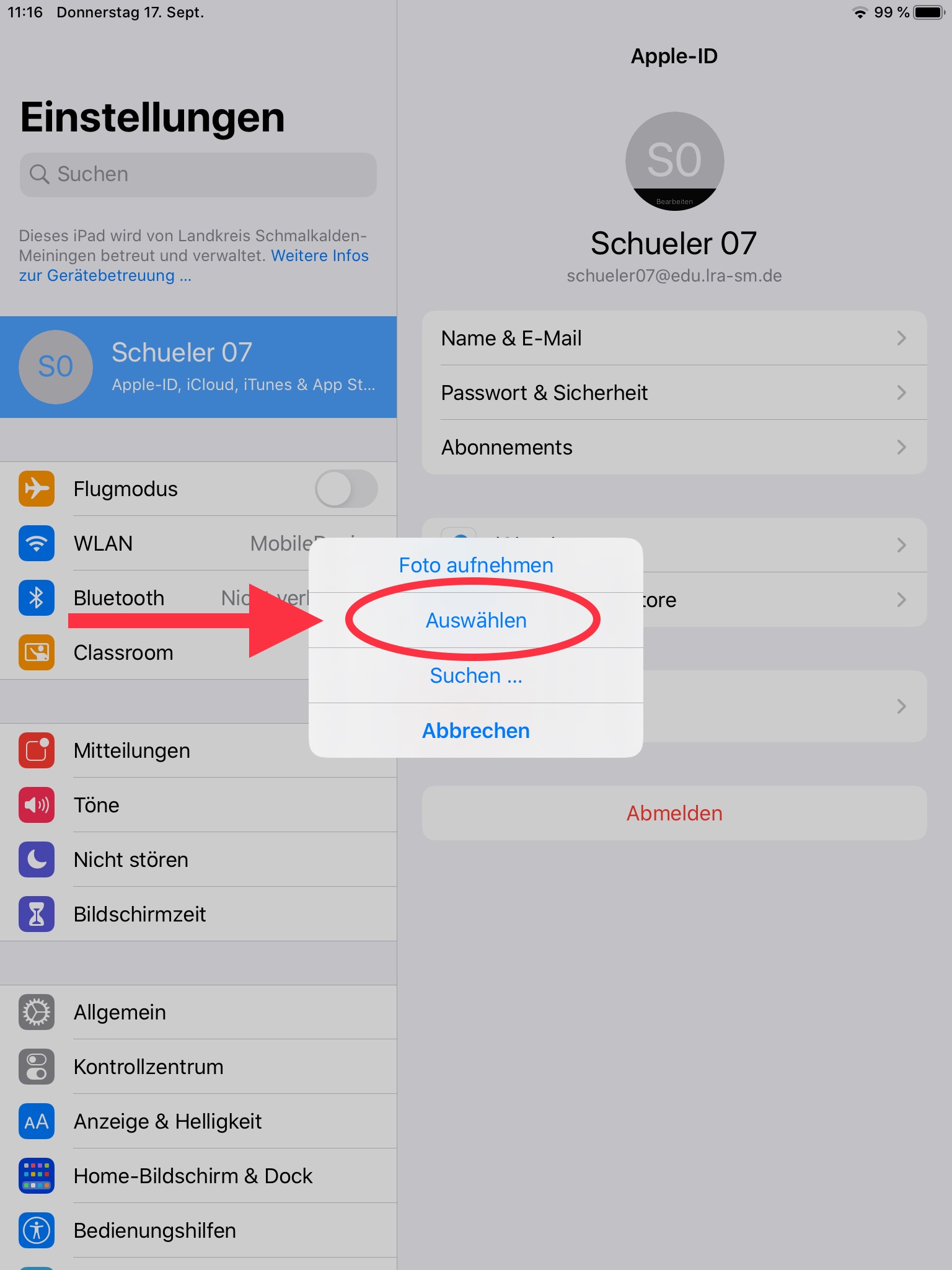
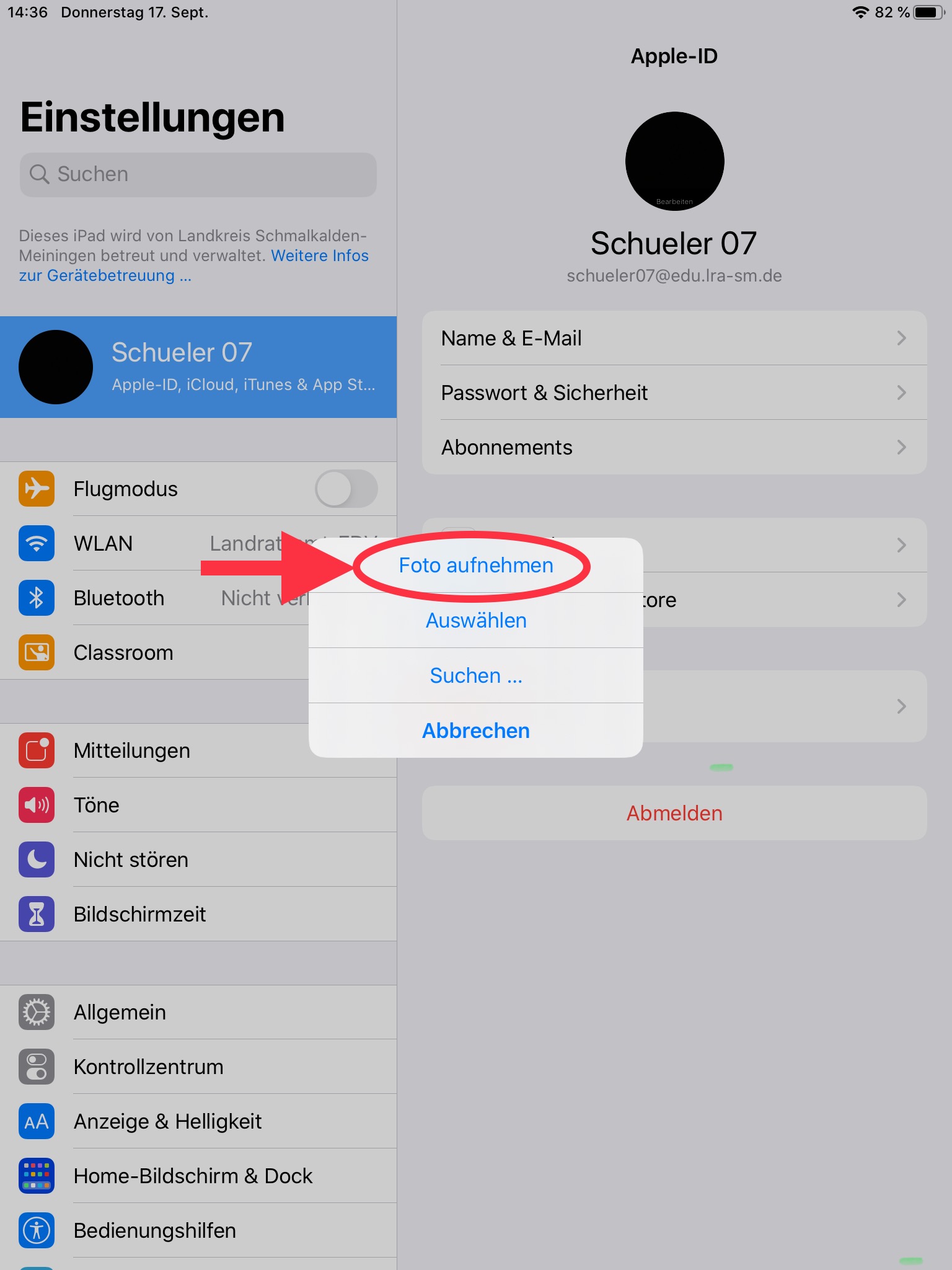
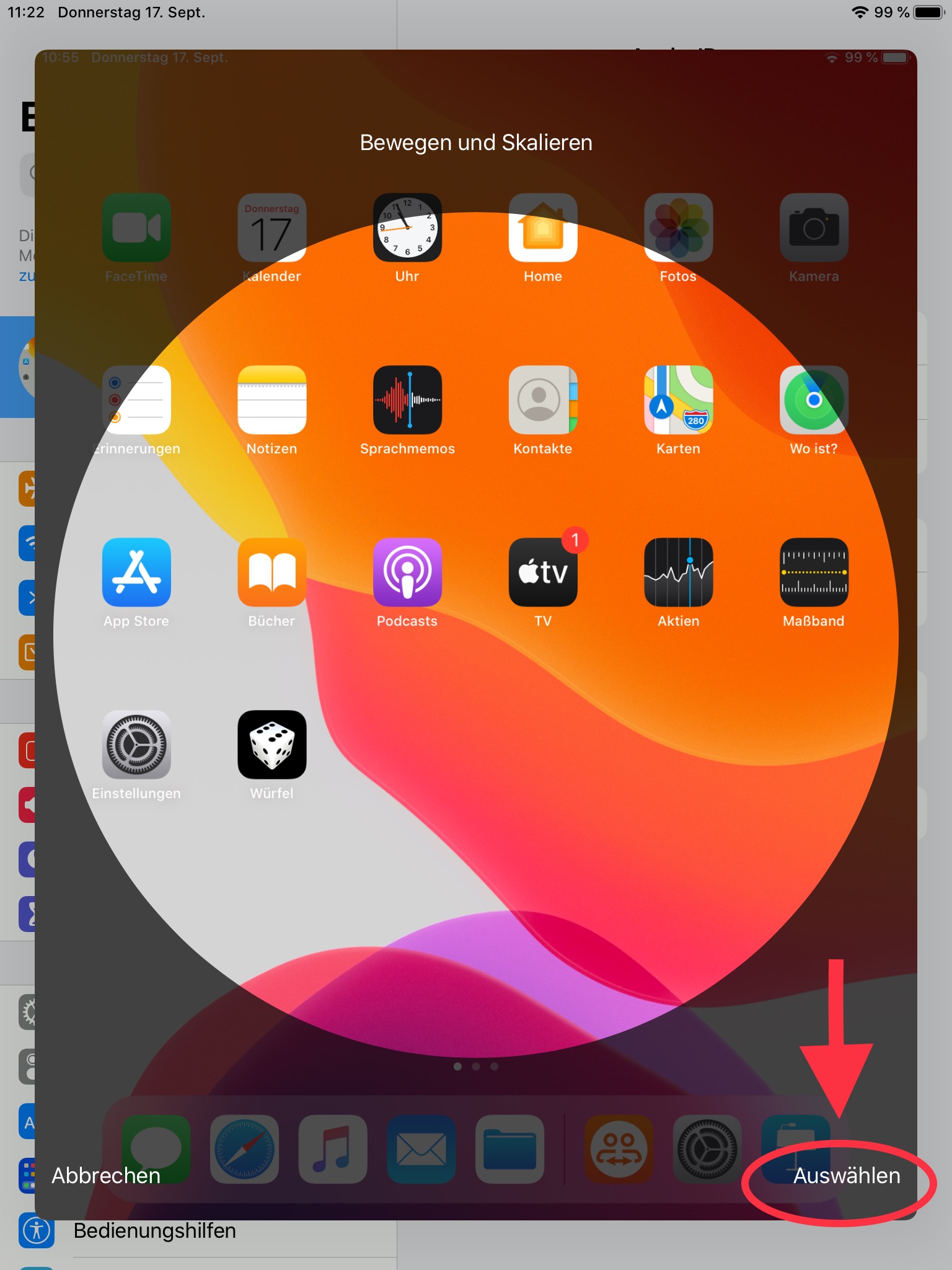
Tippen Sie dann in dem neuen Fenster auf „auswählen“. Danach können Sie aus Ihren Fotos ein Bild hochladen.

Aura - Panel
tab1
styles{"body":{"text":{"fontSize":14,"color":{"light":"#363636"},"textAlign":"left","fontWeight":"normal"}},"header":{},"headline":{},"base":{"boxShadow":{"shadows":[{"color":"rgba(0, 0, 0, 0.08)","x":0,"y":1,"blur":1,"spread":0},{"color":"rgba(0, 0, 0, 0.16)","x":0,"y":1,"blur":3,"spread":1}]},"borderRadius":{"radius":8},"backgroundColor":{"color":{"light":"#f2f2f2"}},"size":{},"border":{"color":{"light":"#c1c1c1"},"style":"solid","width":2,"bottom":true,"top":false,"left":false,"right":false}}}

Schritt 5:

Expand
titleEin-/Ausklappen


Alternativ können Sie auch ein Foto aufnehmen. Wählen Sie dafür den Punkt „Foto aufnehmen“ aus.

Aura - Panel
tab1
styles{"body":{"text":{"fontSize":14,"color":{"light":"#363636"},"textAlign":"left","fontWeight":"normal"}},"header":{},"headline":{},"base":{"boxShadow":{"shadows":[{"color":"rgba(0, 0, 0, 0.08)","x":0,"y":1,"blur":1,"spread":0},{"color":"rgba(0, 0, 0, 0.16)","x":0,"y":1,"blur":3,"spread":1}]},"borderRadius":{"radius":8},"backgroundColor":{"color":{"light":"#f2f2f2"}},"size":{},"border":{"color":{"light":"#c1c1c1"},"style":"solid","width":2,"bottom":true,"top":false,"left":false,"right":false}}}

Schritt 6:

Expand
titleEin-/Ausklappen


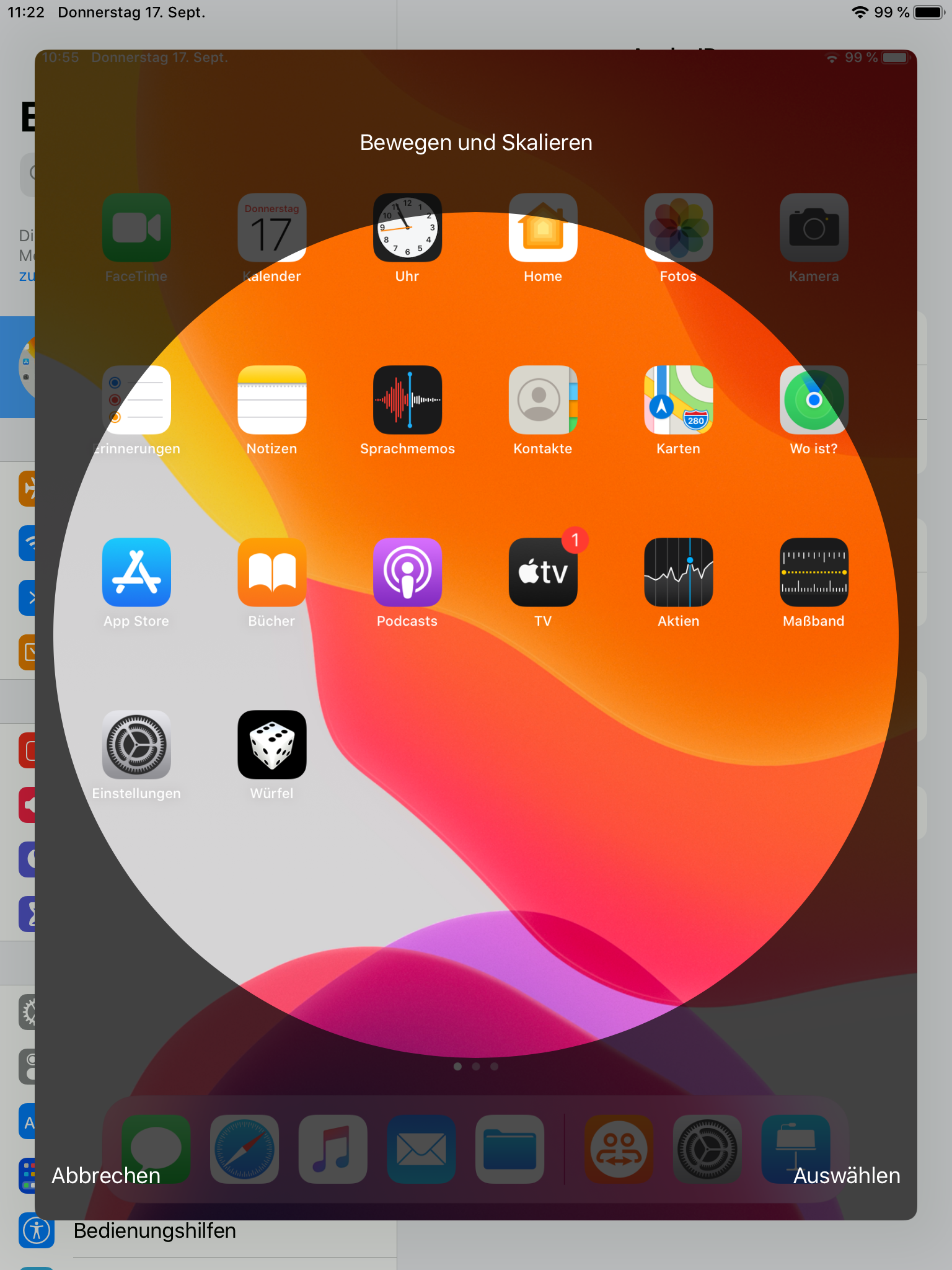
Bewegen Sie dann ihr Foto in dem hellem Kreis, sodass der Ausschnitt vollständig zu sehen ist. 

Aura - Panel
tab1
styles{"body":{"text":{"fontSize":14,"color":{"light":"#363636"},"textAlign":"left","fontWeight":"normal"}},"header":{},"headline":{},"base":{"boxShadow":{"shadows":[{"color":"rgba(0, 0, 0, 0.08)","x":0,"y":1,"blur":1,"spread":0},{"color":"rgba(0, 0, 0, 0.16)","x":0,"y":1,"blur":3,"spread":1}]},"borderRadius":{"radius":8},"backgroundColor":{"color":{"light":"#f2f2f2"}},"size":{},"border":{"color":{"light":"#c1c1c1"},"style":"solid","width":2,"bottom":true,"top":false,"left":false,"right":false}}}

Schritt 7:

Expand
titleEin-/Ausklappen


Zum Schluss wählen sie rechts unten „auswählen“ aus. 

Aura - Panel
tab1
styles{"body":{"text":{"fontSize":14,"color":{"light":"#363636"},"textAlign":"left","fontWeight":"normal"}},"header":{},"headline":{},"base":{"boxShadow":{"shadows":[{"color":"rgba(0, 0, 0, 0.08)","x":0,"y":1,"blur":1,"spread":0},{"color":"rgba(0, 0, 0, 0.16)","x":0,"y":1,"blur":3,"spread":1}]},"borderRadius":{"radius":8},"backgroundColor":{"color":{"light":"#f2f2f2"}},"size":{},"border":{"color":{"light":"#c1c1c1"},"style":"solid","width":2,"bottom":true,"top":false,"left":false,"right":false}}}

Schritt 8:

Expand
titleEin-/Ausklappen


Ihr Profilbild ist nun geändert. Es sollte nun in dem Kreis zu sehen sein.


Tablets an Schulen Neu TSN