Page History
| Page properties | ||||||||||||
|---|---|---|---|---|---|---|---|---|---|---|---|---|
| ||||||||||||
|
| Aura - Button | ||||||||||||||||||||||||
|---|---|---|---|---|---|---|---|---|---|---|---|---|---|---|---|---|---|---|---|---|---|---|---|---|
|
| Aura - Background Content | ||||||||||||||
|---|---|---|---|---|---|---|---|---|---|---|---|---|---|---|
| ||||||||||||||
| Aura - Title | ||||||||||||||
|---|---|---|---|---|---|---|---|---|---|---|---|---|---|---|
| ||||||||||||||
Anleitung zum Sichern von iPad-Inhalten |
| Aura - Panel | ||||
|---|---|---|---|---|
| ||||
Im Folgenden wird Ihnen Schritt für Schritt erklärt, wie man Backups in der iCloud macht. |
/ Apple FAQ |
| Aura - Divider | ||||
|---|---|---|---|---|
|
| Aura - Title | ||||||||||||||
|---|---|---|---|---|---|---|---|---|---|---|---|---|---|---|
| ||||||||||||||
AufrufenApple derFAQ iCloudSeiten |
| Aura - Panel | |||||
|---|---|---|---|---|---|
| |||||
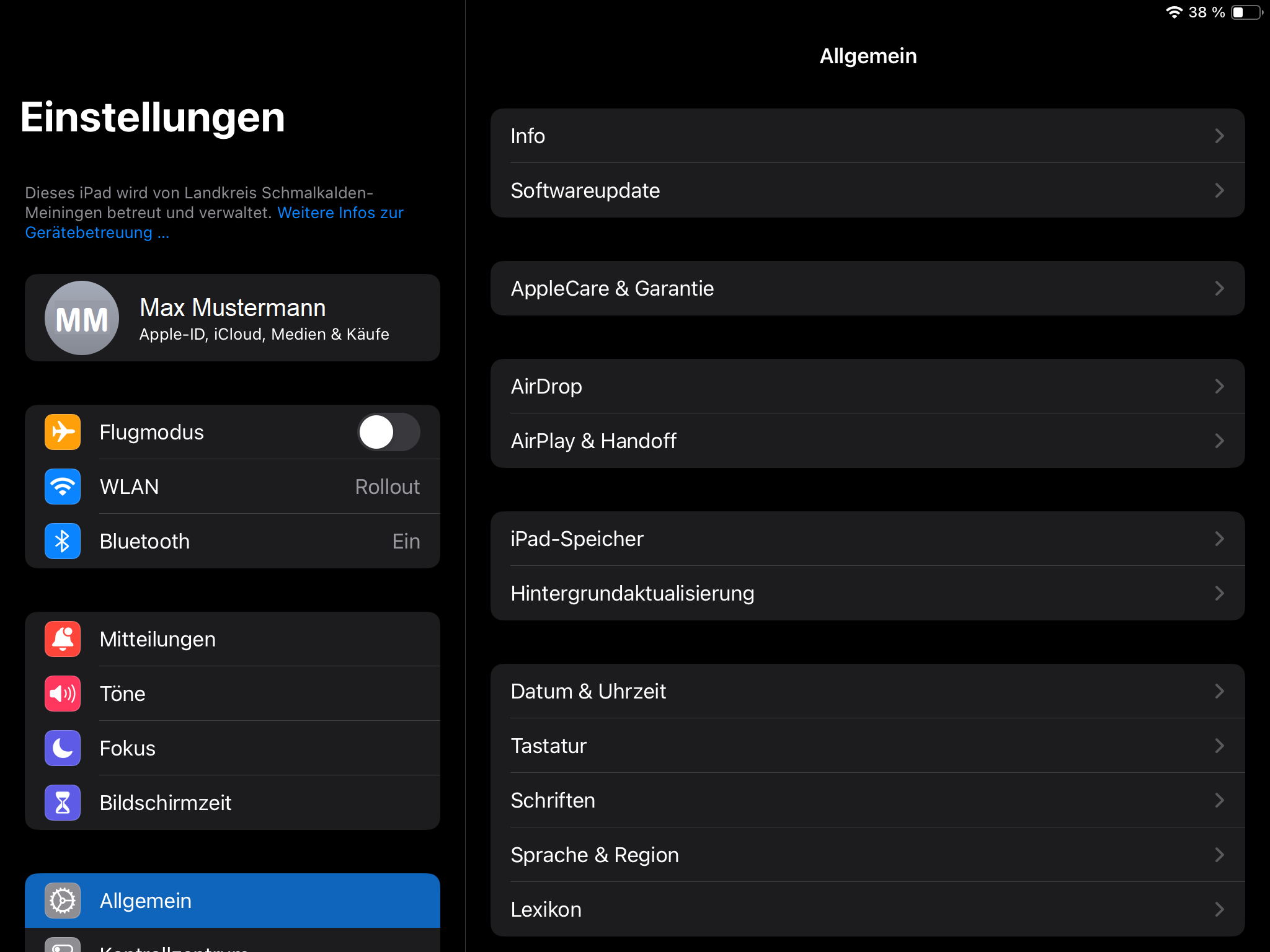
Schritt 1: Einstellungen öffnen
|
| Aura - Panel | |||||
|---|---|---|---|---|---|
| |||||
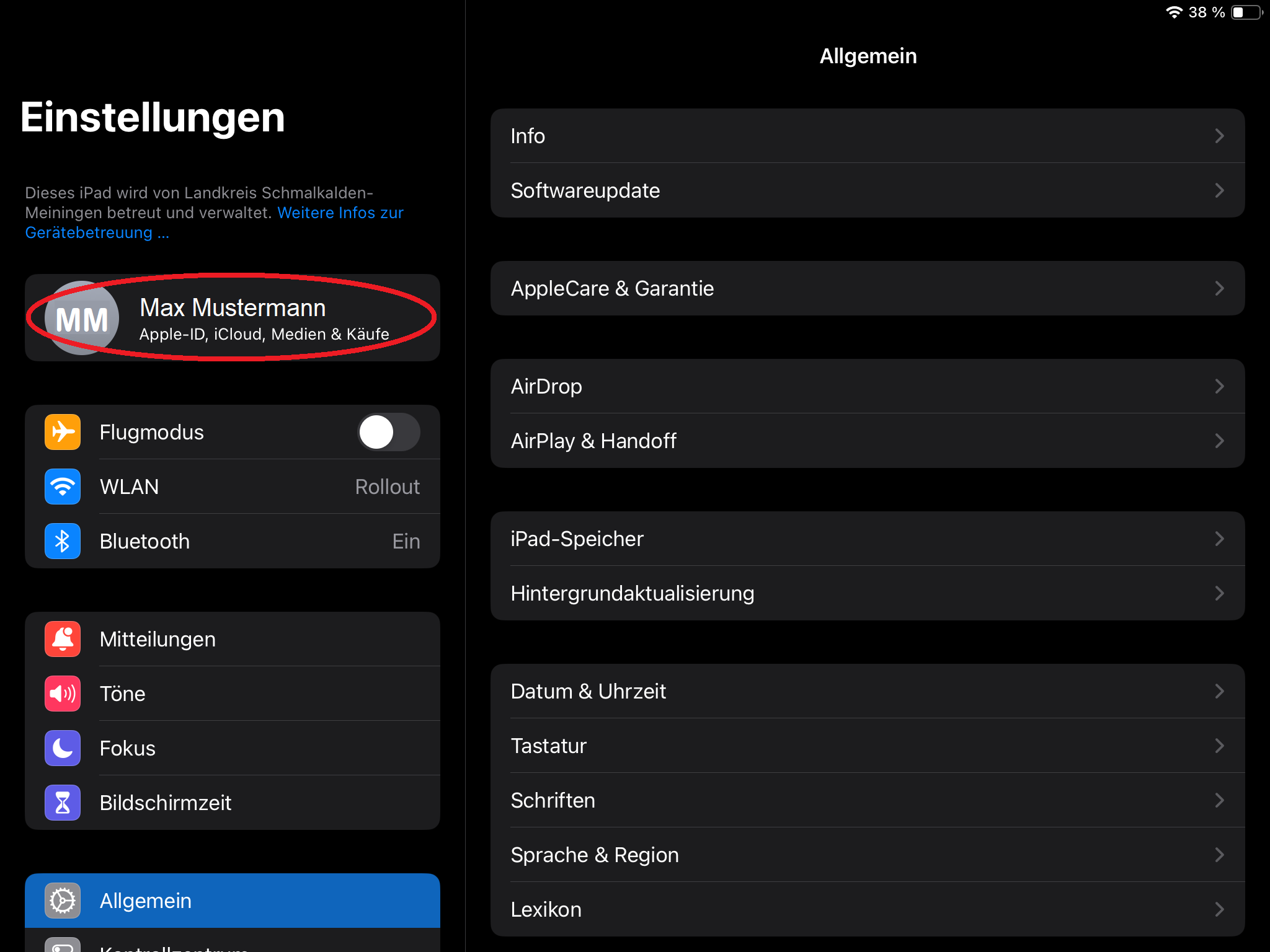
Schritt 2: Apple-ID auswählen
|
| Aura - Panel | |||||
|---|---|---|---|---|---|
| |||||
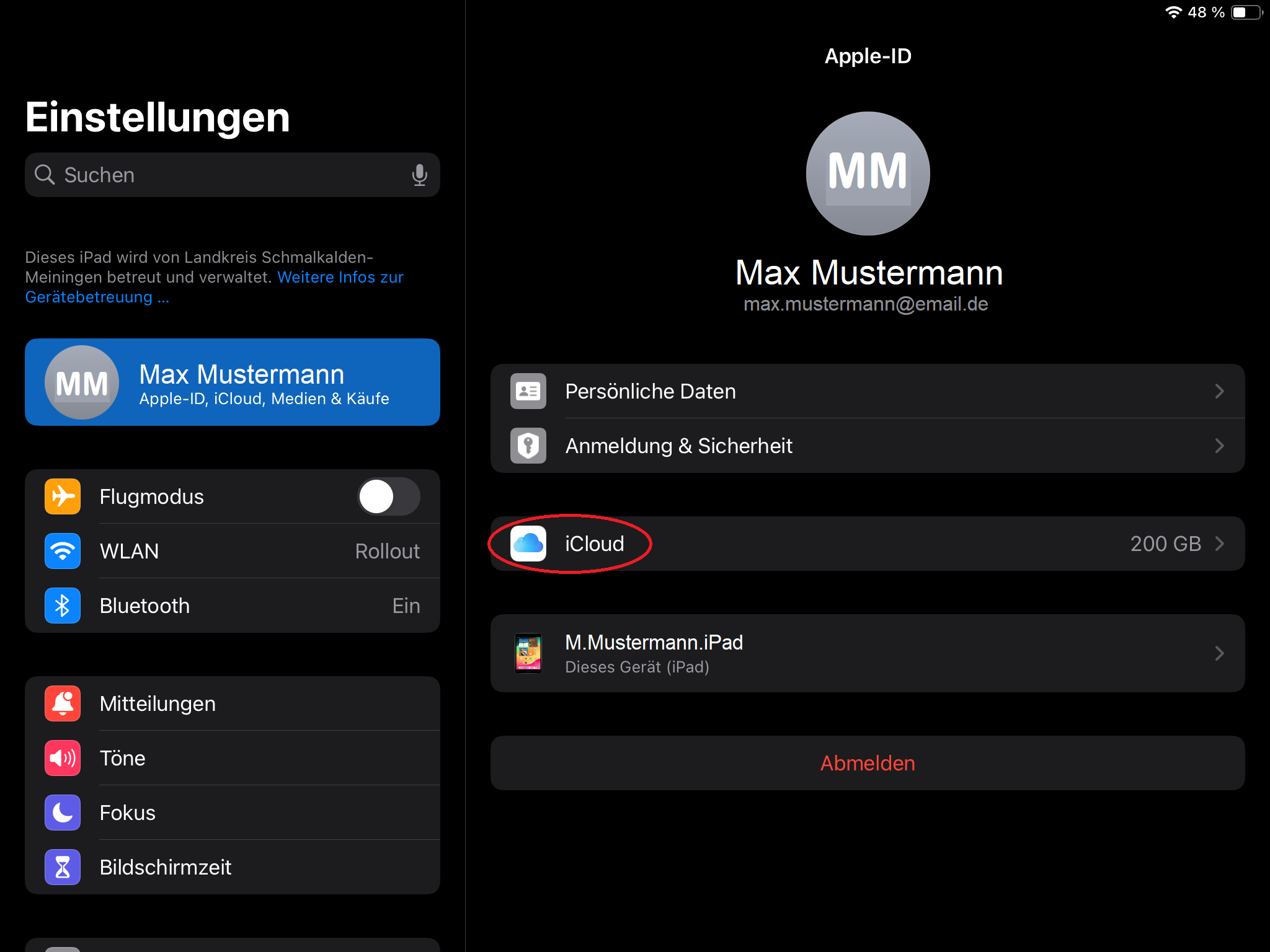
Schritt 3: iCloud öffnen
|
| Aura - Divider | ||||
|---|---|---|---|---|
|
| Aura - Title | ||||||||||||||
|---|---|---|---|---|---|---|---|---|---|---|---|---|---|---|
| ||||||||||||||
Erstellen eines Backups |
| Aura - Panel | |||||
|---|---|---|---|---|---|
| |||||
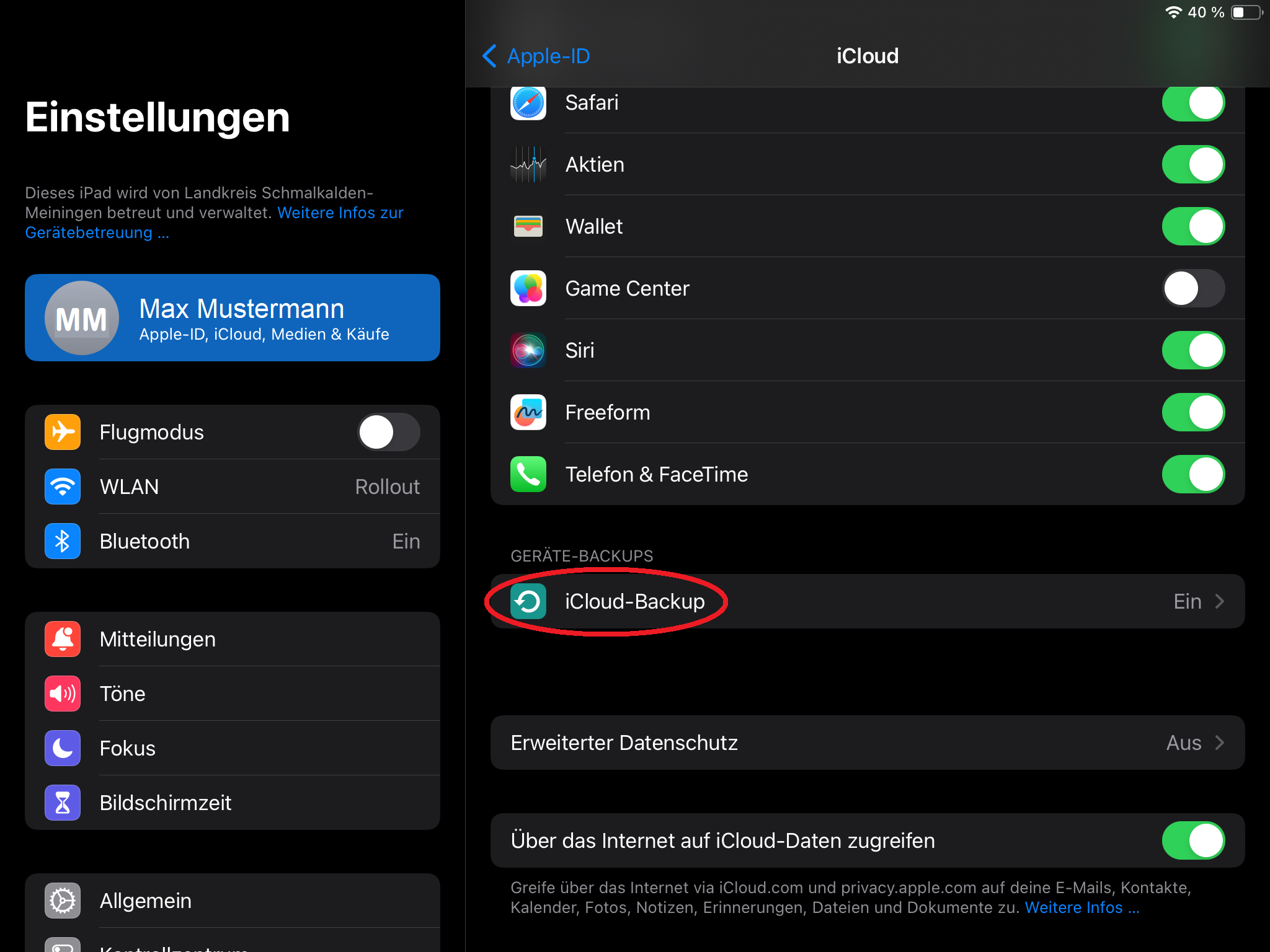
Schritt 4: Apps kontrollieren
|
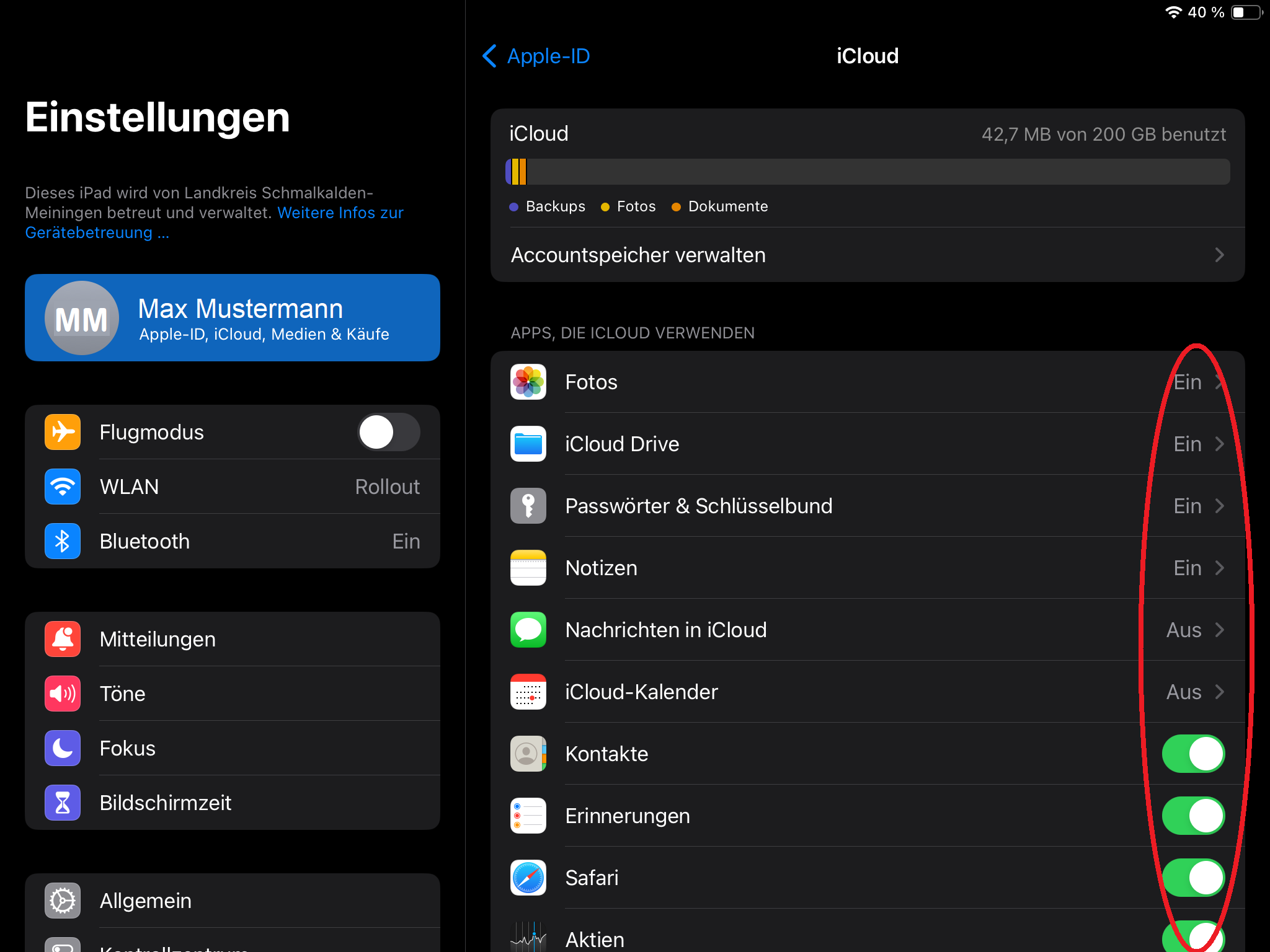
iCloud-Daten sichern über Privacy Apple:
In iCloud gespeicherte Daten archivieren oder kopieren:
| Aura - Panel | |||||
|---|---|---|---|---|---|
| |||||
Schritt 5: Backup erstellen
|
| Aura - Divider | ||||
|---|---|---|---|---|
|
| tab | 1 |
|---|---|
| styles | {"base":{"backgroundColor":{"color":"var(--aui-body-background)"},"border":{"color":"#e5556e","width":4,"top":false,"right":false,"bottom":false,"left":true,"style":"solid"},"borderRadius":{"radius":8},"boxShadow":{"shadows":[{"color":"rgba(0, 0, 0, 0.08)","x":0,"y":1,"blur":1,"spread":0},{"color":"rgba(0, 0, 0, 0.16)","x":0,"y":1,"blur":3,"spread":1}]}},"body":{"text":{"fontSize":14,"color":"#9d9d9d","fontWeight":"normal","textAlign":"left"}},"header":{"icon":{"name":"faExclamationCircle","color":"#e5556e","size":36}},"headline":{"text":{"text":"Wichtig","color":"var(--ds-text)","fontSize":36,"fontWeight":"bold","textAlign":"left"}}} |
| Aura - Divider | ||||
|---|---|---|---|---|
|
| Aura - Title | ||||||||||||||
|---|---|---|---|---|---|---|---|---|---|---|---|---|---|---|
| ||||||||||||||
Manuelles Speichern in iCloud
|
| tab | 0 |
|---|---|
| styles | {"body":{"text":{"fontSize":14,"color":{"light":"#363636"},"textAlign":"left","fontWeight":"normal"}},"header":{},"headline":{"alignment":{"horizontal":"start"}},"base":{"boxShadow":{"shadows":[{"color":"rgba(0, 0, 0, 0.08)","x":0,"y":1,"blur":1,"spread":0},{"color":"rgba(0, 0, 0, 0.16)","x":0,"y":1,"blur":3,"spread":1}]},"borderRadius":{"radius":8},"backgroundColor":{"color":{"light":"#f2f2f2"}},"border":{"color":{"light":"#c1c1c1"},"style":"solid","width":2,"bottom":true,"top":false,"left":false,"right":false},"size":{}}} |
1. Dokumente und Dateien in die iCloud speichern:
| title | Ein-/Ausklappen |
|---|
Öffne die Dateien-App → Wähle die zu sichernden Dateien/Dokumente aus → Klicke auf „Verschieben“ oder „Kopieren“ → Wähle iCloud Drive als Ziel aus.
| tab | 0 |
|---|---|
| styles | {"body":{"text":{"fontSize":14,"color":{"light":"#363636"},"textAlign":"left","fontWeight":"normal"}},"header":{},"headline":{"alignment":{"horizontal":"start"}},"base":{"boxShadow":{"shadows":[{"color":"rgba(0, 0, 0, 0.08)","x":0,"y":1,"blur":1,"spread":0},{"color":"rgba(0, 0, 0, 0.16)","x":0,"y":1,"blur":3,"spread":1}]},"borderRadius":{"radius":8},"backgroundColor":{"color":{"light":"#f2f2f2"}},"border":{"color":{"light":"#c1c1c1"},"style":"solid","width":2,"bottom":true,"top":false,"left":false,"right":false},"size":{}}} |
2. Apps wie Pages, Numbers, Keynote manuell in iCloud speichern:
| title | Ein-/Ausklappen |
|---|
Öffne das Dokument → Tippe auf das Teilen-Symbol → Wähle „In Dateien sichern“ → Wähle iCloud Drive als Speicherort.
| tab | 0 |
|---|---|
| styles | {"body":{"text":{"fontSize":14,"color":{"light":"#363636"},"textAlign":"left","fontWeight":"normal"}},"header":{},"headline":{"alignment":{"horizontal":"start"}},"base":{"boxShadow":{"shadows":[{"color":"rgba(0, 0, 0, 0.08)","x":0,"y":1,"blur":1,"spread":0},{"color":"rgba(0, 0, 0, 0.16)","x":0,"y":1,"blur":3,"spread":1}]},"borderRadius":{"radius":8},"backgroundColor":{"color":{"light":"#f2f2f2"}},"border":{"color":{"light":"#c1c1c1"},"style":"solid","width":2,"bottom":true,"top":false,"left":false,"right":false},"size":{}}} |
3. Fotos und Videos in iCloud speichern:
| title | Ein-/Ausklappen |
|---|