Tablets an Schulen Neu
Space shortcuts
Space Tools
Tablets an Schulen Neu TSN

Versions Compared

Key

  • This line was added.
  • This line was removed.
  • Formatting was changed.
Page properties
hiddentrue
InhaltAnleitung zur iPad-Einrichtung in der entfernten Verwaltung
Version1
Status

Status
colourGreen
titleaktiv

Aura - Panel
tab1
styles{"base":{"backgroundColor":{"color":"var(--aui-body-background)"},"border":{"color":{"light":"#007bbd"},"width":4,"top":false,"right":false,"bottom":false,"left":true,"style":"solid"},"borderRadius":{"radius":8},"boxShadow":{"shadows":[{"color":"rgba(0, 0, 0, 0.08)","x":0,"y":1,"blur":1,"spread":0},{"color":"rgba(0, 0, 0, 0.16)","x":0,"y":1,"blur":3,"spread":1}]}},"body":{"text":{"fontSize":14,"color":{"light":"#363636"},"fontWeight":"normal","textAlign":"left"}},"header":{"icon":{"name":"faInfoCircle","color":{"light":"#007bbd"},"size":18}},"headline":{"text":{"text":"Info","color":"var(--ds-text)","fontSize":18,"fontWeight":"bold","textAlign":"left"}}}

In dieser Anleitung wird die Erstinstallation / Einrichtung eines Tablets in der entfernten Verwaltung Schritt-für-Schritt erklärt.

Aura - Divider
serializedStyles{"alignment":{"horizontal":"start"},"icon":{"name":"faPaperPlane","color":"#333","size":24},"text":{"color":"#333","fontSize":14,"textAlign":"left","fontWeight":"bold","text":"Aura Divider"},"border":{"top":false,"right":false,"bottom":true,"left":false,"color":{"light":"#b6c2cf"},"style":"solid","width":1},"size":{}}
typeregular

Aura - Panel
tab1
styles{"body":{},"header":{},"headline":{},"base":{"backgroundColorboxShadow":{"colorshadows":[{"lightcolor":"#e3f6d2"}},"borderRadius":{"radius":4},"border":{"width":2,rgba(0, 0, 0, 0.08)","x":0,"y":1,"blur":1,"spread":0},{"color":{"light":"#68aa28"},"top":false,"right":false,"bottom":false,"left":true,"style":"solid"}},"body":{"text"rgba(0, 0, 0, 0.16)","x":0,"y":1,"blur":3,"spread":1}]},"borderRadius":{"radius":4},"backgroundColor":{"color":{"light":"#363636#f2f2f2"},"fontSize":14,"fontWeight":"normal","textAlign":"left"}}}

Tutorial Video

Multimedia
nameEinrichtung iPad.mov

Aura - Panel
tab1
styles{"body":{},"header":{},"headline":{},"base":{"boxShadow":{"shadows":[{"color":"rgba(0, 0, 0, 0.08)","x":0,"y":1,"blur":1,"spread":0},{"color":"rgba(0, 0, 0, 0.16)","x":0,"y":1,"blur":3,"spread":1}]},"borderRadius":{"radius":4},"backgroundColor":{"color":{"light":"#f2f2f2"}}}}

iPad einschalten

  • Hallo
Aura - Panel
tab1
styles{"body":{},"header":{},"headline":{},"base":{"boxShadow":{"shadows":[{"color":"rgba(0, 0, 0, 0.08)","x":0,"y":1,"blur":1,"spread":0},{"color":"rgba(0, 0, 0, 0.16)","x":0,"y":1,"blur":3,"spread":1}]},"borderRadius":{"radius":4},"backgroundColor":{"color":{"light":"#f2f2f2"}}}}

Sprache einstellen

  • Land oder Region wählen
  • Schnellstart
    • Manuell konfigurieren (unten in der Mitte)
Aura - Panel
tab1
styles{"body":{},"header":{},"headline":{},"base":{"boxShadow":{"shadows":[{"color":"rgba(0, 0, 0, 0.08)","x":0,"y":1,"blur":1,"spread":0},{"color":"rgba(0, 0, 0, 0.16)","x":0,"y":1,"blur":3,"spread":1}]},"borderRadius":{"radius":4},"backgroundColor":{"color":{"light":"#f2f2f2"}}}}

WLAN wählen

  • ihr entsprechendes WLAN auswählen und das Passwort eingeben
  • Das iPad sollte jetzt Internetzugang haben!
Aura - Panel
tab1
styles{"body":{},"header":{},"headline":{},"base":{"boxShadow":{"shadows":[{"color":"rgba(0, 0, 0, 0.08)","x":0,"y":1,"blur":1,"spread":0},{"color":"rgba(0, 0, 0, 0.16)","x":0,"y":1,"blur":3,"spread":1}]},"borderRadius":{"radius":4},"backgroundColor":{"color":{"light":"#f2f2f2"}}}}

Daten & Datenschutz

  • unten in der Mitte auf Weiter
Aura - Panel
tab1
styles{"body":{},"header":{},"headline":{},"base":{"boxShadow":{"shadows":[{"color":"rgba(0, 0, 0, 0.08)","x":0,"y":1,"blur":1,"spread":0},{"color":"rgba(0, 0, 0, 0.16)","x":0,"y":1,"blur":3,"spread":1}]},"borderRadius":{"radius":4},"backgroundColor":{"color":{"light":"#f2f2f2"}}}}

Apps & Daten

  • keine Apps und Daten übertragen wählen
  • → wird von einem alten iPad auf ein neues Gerät gewechselt, Backup laden wählen
Aura - Panel
tab1
styles{"body":{},"header":{},"headline":{},"base":{"boxShadow":{"shadows":[{"color":"rgba(0, 0, 0, 0.08)","x":0,"y":1,"blur":1,"spread":0},{"color":"rgba(0, 0, 0, 0.16)","x":0,"y":1,"blur":3,"spread":1}]},"borderRadius":{"radius":4},"backgroundColor":{"color":{"light":"#f2f2f2"}}}}

Entfernte Verwaltung

  • oben rechts auf Weiter
  • Benutzername:
    • steht auf dem Passwortbrief vom Landratsamt, oben rechts bei Benutzername/E-Mail
  • Kennwort:
    • das Kennwort eingeben, welches unter dem Benutzername steht
Aura - Panel
tab1
styles{"body":{},"header":{},"headline":{},"base":{"boxShadow":{"shadows":[{"color":"rgba(0, 0, 0, 0.08)","x":0,"y":1,"blur":1,"spread":0},{"color":"rgba(0, 0, 0, 0.16)","x":0,"y":1,"blur":3,"spread":1}]},"borderRadius":{"radius":4},"backgroundColor":{"color":{"light":"#f2f2f2"}}}}

Touch ID

  • kann sofort gemacht werden (fortfahren wählen)
  • oder in den Einstellungen später konfiguriert werden
Aura - Panel
tab1
styles{"body":{},"header":{},"headline":{},"base":{"boxShadow":{"shadows":[{"color":"rgba(0, 0, 0, 0.08)","x":0,"y":1,"blur":1,"spread":0},{"color":"rgba(0, 0, 0, 0.16)","x":0,"y":1,"blur":3,"spread":1}]},"borderRadius":{"radius":4},"backgroundColor":{"color":{"light":"#f2f2f2"}}}}

Code erstellen (Gerätepasswort)

  • Diesen Code unbedingt merken und auf dem Passwortzettel notieren!
Aura - Panel
tab1
styles{"body":{},"header":{},"headline":{},"base":{"boxShadow":{"shadows":[{"color":"rgba(0, 0, 0, 0.08)","x":0,"y":1,"blur":1,"spread":0},{"color":"rgba(0, 0, 0, 0.16)","x":0,"y":1,"blur":3,"spread":1}]},"borderRadius":{"radius":4},"backgroundColor":{"color":{"light":"#f2f2f2"}}}}

Apple-ID

  • steht auf dem 2. Schreiben (Hallo Vorname.Nachname!)
    • Verwaltete Apple-ID eingeben
    • oben rechts auf Weiter
  • Zugehöriges Passwort eingeben (temporäres Passwort)
Aura - Panel
tab1
styles{"body":{},"header":{},"headline":{},"base":{"boxShadow":{"shadows":[{"color":"rgba(0, 0, 0, 0.08)","x":0,"y":1,"blur":1,"spread":0},{"color":"rgba(0, 0, 0, 0.16)","x":0,"y":1,"blur":3,"spread":1}]},"borderRadius":{"radius":4},"backgroundColor":{"color":{"light":"#f2f2f2"}}}}

Passwort erstellen

  • Aktuelles:           das temporäre Passwort eingeben
  • Neues:               neues Passwort eingeben
  • Bestätigen:        neues Passwort erneut eingeben
  • Das neue Passwort unbedingt merken und auf dem Passwortzettel notieren!
Aura - Panel
tab1
styles{"body":{},"header":{},"headline":{},"base":{"boxShadow":{"shadows":[{"color":"rgba(0, 0, 0, 0.08)","x":0,"y":1,"blur":1,"spread":0},{"color":"rgba(0, 0, 0, 0.16)","x":0,"y":1,"blur":3,"spread":1}]},"borderRadius":{"radius":4},"backgroundColor":{"color":{"light":"#f2f2f2"}}}}

iPad auf dem neusten Stand halten

  • unten in der Mitte auf Fortfahren
Aura - Panel
tab1
styles{"body":{},"header":{},"headline":{},"base":{"boxShadow":{"shadows":[{"color":"rgba(0, 0, 0, 0.08)","x":0,"y":1,"blur":1,"spread":0},{"color":"rgba(0, 0, 0, 0.16)","x":0,"y":1,"blur":3,"spread":1}]},"borderRadius":{"radius":4},"backgroundColor":{"color":{"light":"#f2f2f2"}}}}

Ortungsdienste

  • aktivieren (wichtig, für die richtige Zeitzone)
Aura - Panel
tab1
styles{"body":{},"header":{},"headline":{},"base":{"boxShadow":{"shadows":[{"color":"rgba(0, 0, 0, 0.08)","x":0,"y":1,"blur":1,"spread":0},{"color":"rgba(0, 0, 0, 0.16)","x":0,"y":1,"blur":3,"spread":1}]},"borderRadius":{"radius":4},"backgroundColor":{"color":{"light":"#f2f2f2"}}}}

Bildschirmzeit

  • unten in der Mitte auf Fortfahren
Aura - Panel
tab1
styles{"body":{},"header":{},"headline":{},"base":{"boxShadow":{"shadows":[{"color":"rgba(0, 0, 0, 0.08)","x":0,"y":1,"blur":1,"spread":0},{"color":"rgba(0, 0, 0, 0.16)","x":0,"y":1,"blur":3,"spread":1}]},"borderRadius":{"radius":4},"backgroundColor":{"color":{"light":"#f2f2f2"}}}}

Willkommen beim iPad

  • auf Los geht`s
  • danach werden alle Apps der Schule installiert
  • Fertig, das iPad ist eingerichtet!

Aura - Divider
serializedStyles{"alignment":{"horizontal":"start"},"icon":{"name":"faPaperPlane","color":"#333","size":24},"text":{"color":"#333","fontSize":14,"textAlign":"left","fontWeight":"bold","text":"Aura Divider"},"border":{"top":false,"right":false,"bottom":true,"left":false,"color":{"light":"#b6c2cf"},"style":"solid","width":1},"size":{}}
typeregular

Aura - Panel
tab1
styles{"body":{},"header":{},"headline":{},"base":{"boxShadow":{"shadows":[{"color":"rgba(0, 0, 0, 0.08)","x":0,"y":1,"blur":1,"spread":0},{"color":"rgba(0, 0, 0, 0.16)","x":0,"y":1,"blur":3,"spread":1}]},"borderRadius":{"radius":4},"backgroundColor":{"color":{"light":"#f2f2f2"}}}}

Eigene Apps installieren:

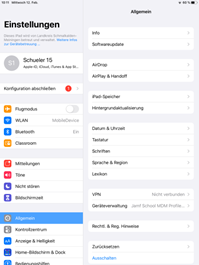
Wenn Sie das iPad nach dieser Anleitung eingerichtet haben, sind Sie mit Ihrer verwalteten Apple-ID angemeldet. Diese finden Sie in den Einstellungen (ganz oben).

Mit dieser Apple-ID haben Sie Zugriff auf iCloud, bei der ein freier Speicher von 200GB zur Verfügung steht.

Allerdings können mit dieser Apple-ID keine Einkäufe getätigt werden.

Aura - Divider
serializedStyles{"alignment":{"horizontal":"start"},"icon":{"name":"faPaperPlane","color":"#333","size":24},"text":{"color":"#333","fontSize":14,"textAlign":"left","fontWeight":"bold","text":"Aura Divider"},"border":{"top":false,"right":false,"bottom":true,"left":false,"color":{"light":"#b6c2cf"},"style":"solid","width":1},"size":{}}
typeregular

Panel
borderColor#006599
titleColor#FFFFFF
titleBGColor#007bbd
borderStylesolid
titleWeiterführende Informationen

Vorbereitung zur Installation - Voraussetzungen für die Installation:

Handout_iPad_Rollout_Voraussetzungen_v5 (1).pdf


Tablets an Schulen Neu TSN